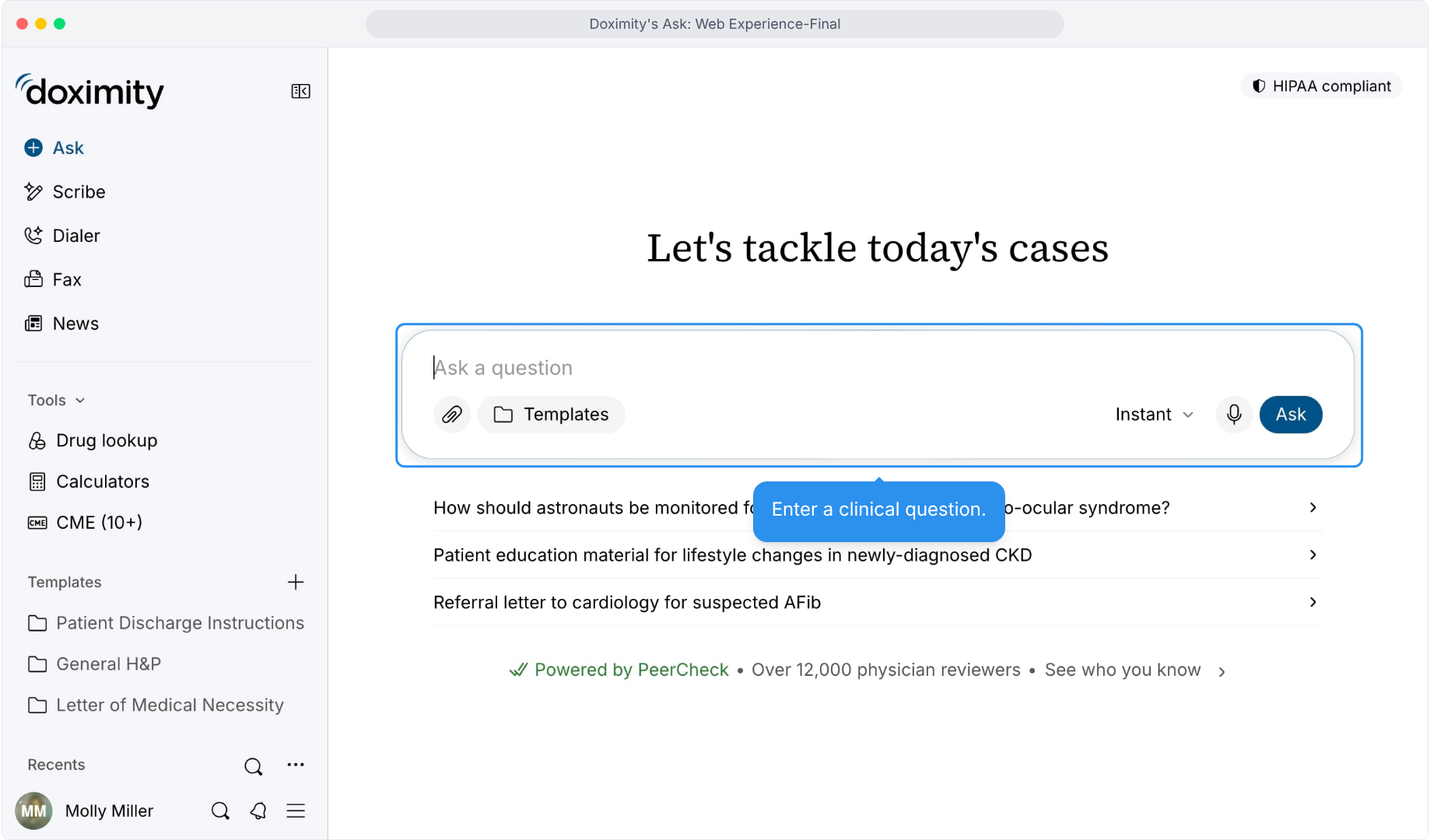
- Start With a Clinical Question
The prompt box sits at the center of the home screen, so you can begin right away.
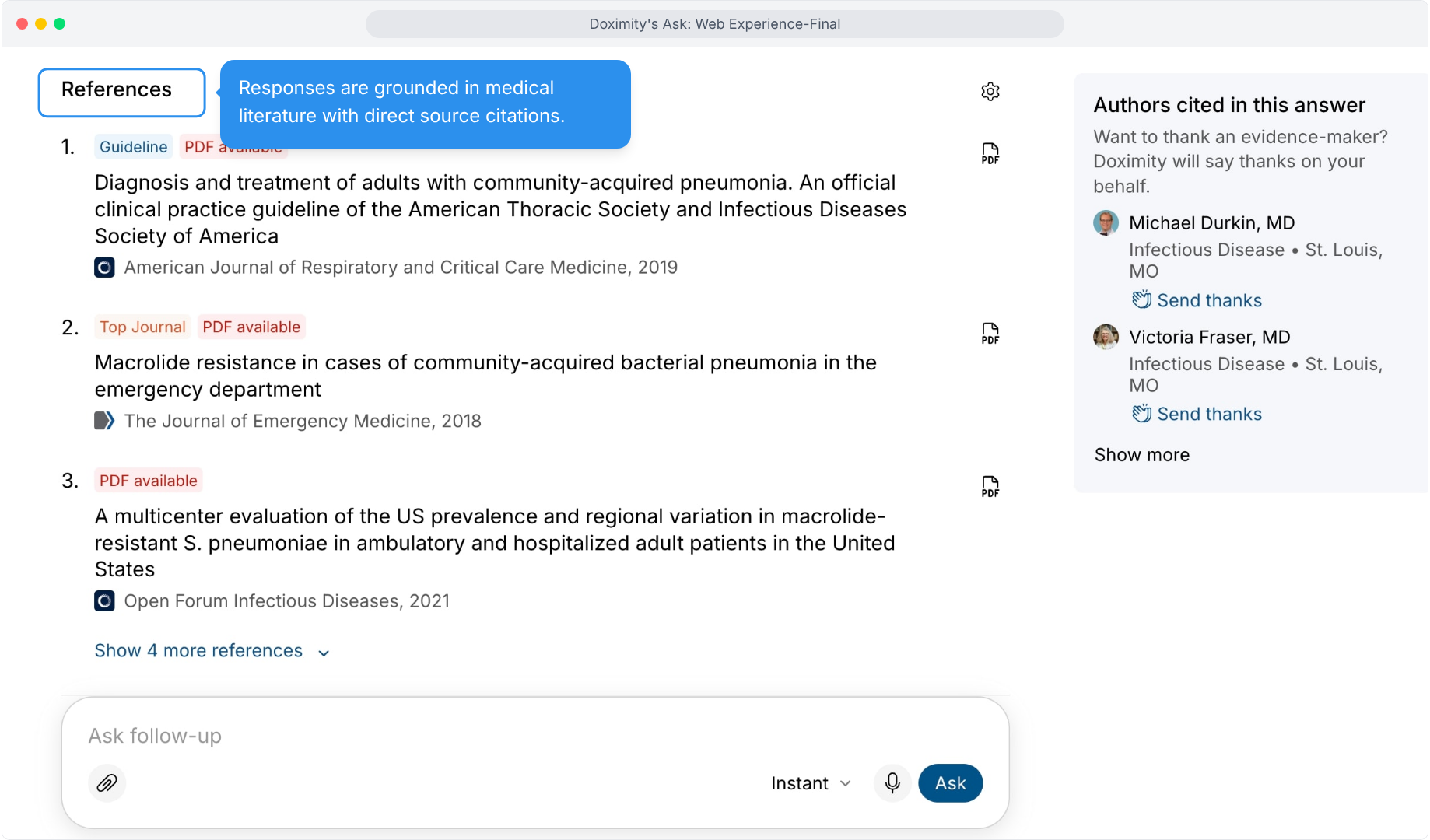
- Check the Sources Behind Answers
Each answer shows its references and the authors cited, so you can see where the answer comes from.
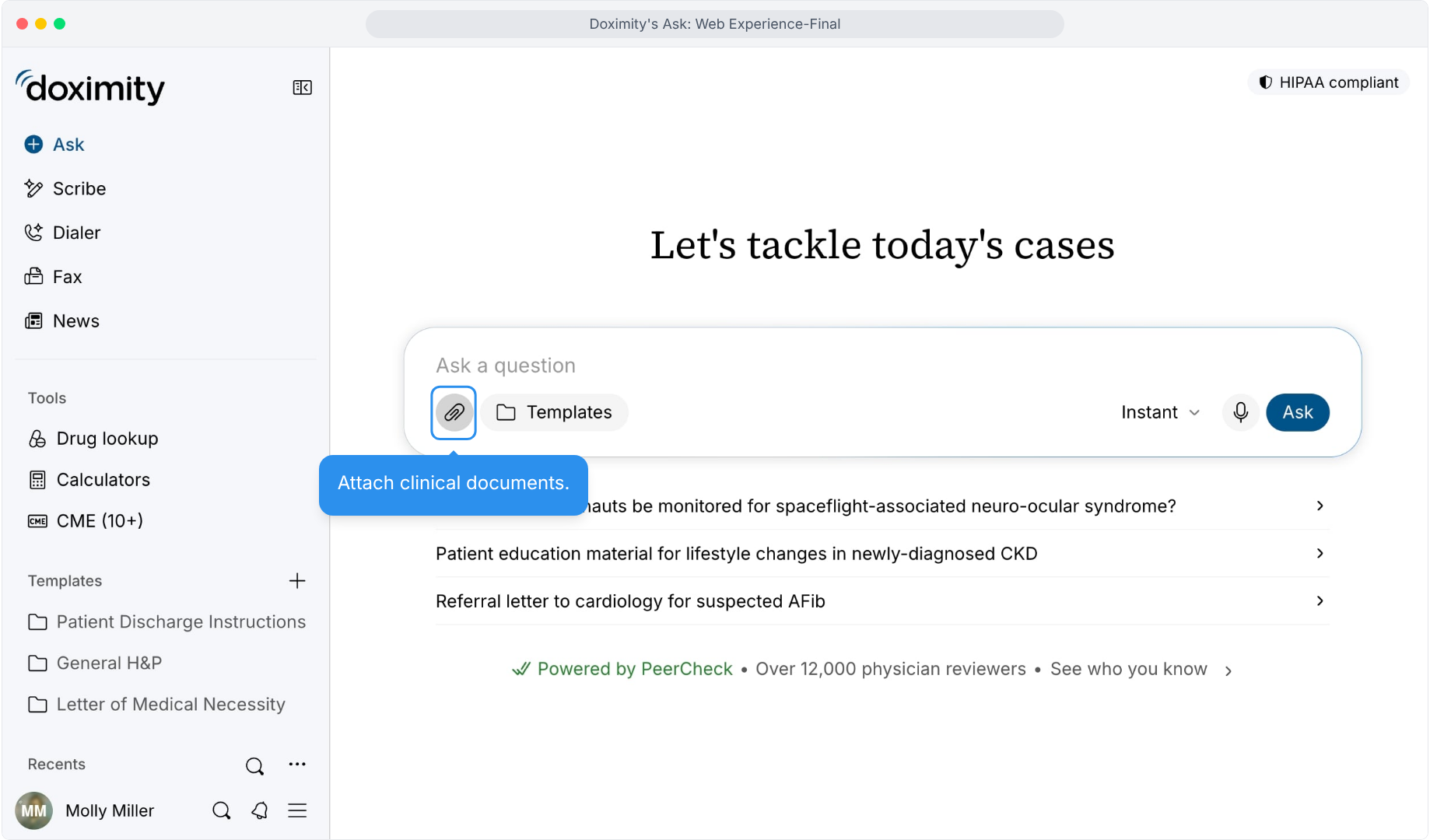
- Attach Clinical Documents
Add files instead of retyping details into your question.
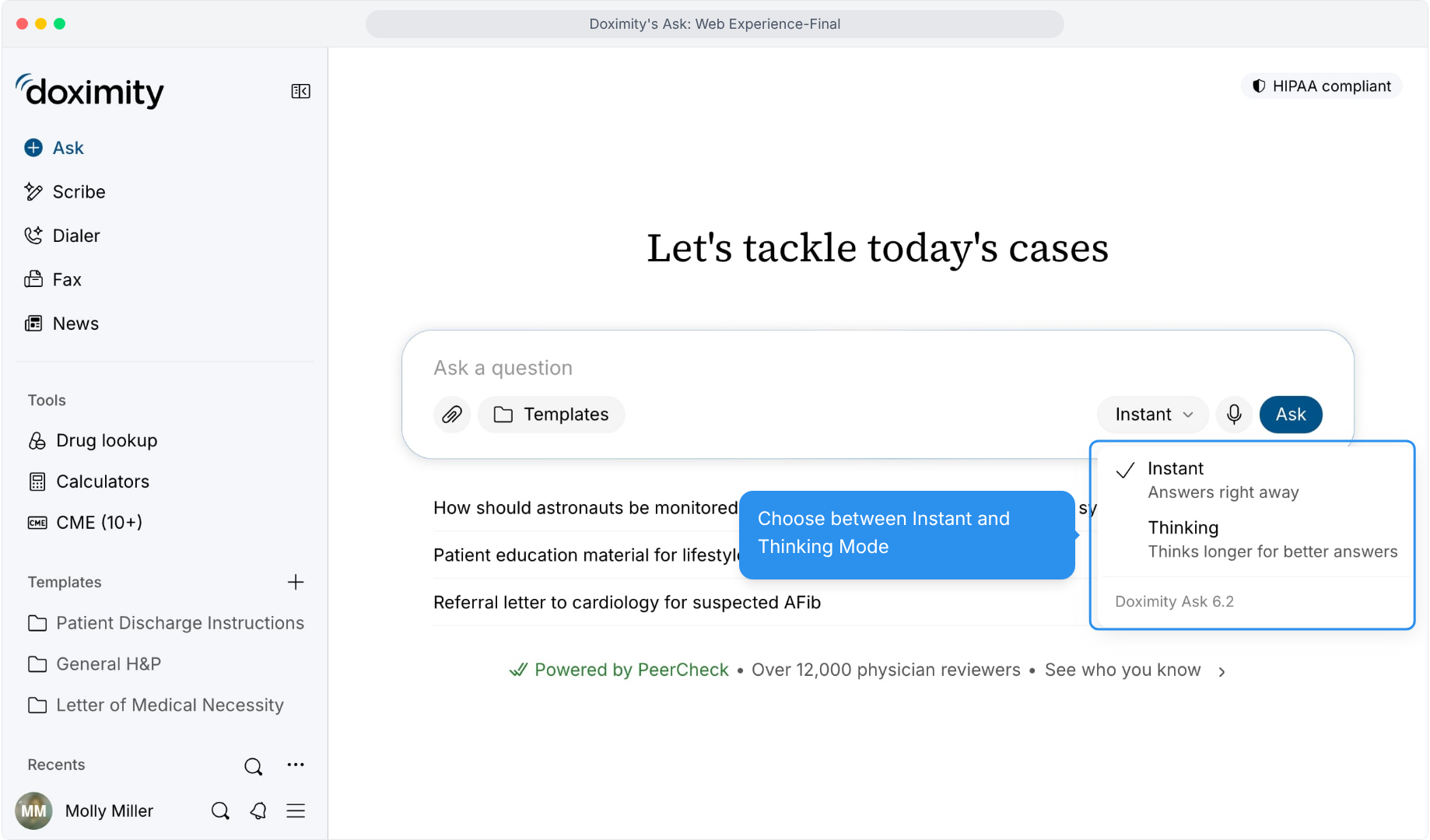
- Match the Mode to Your Question
Pick Instant for speed or Thinking when a case calls for more analysis
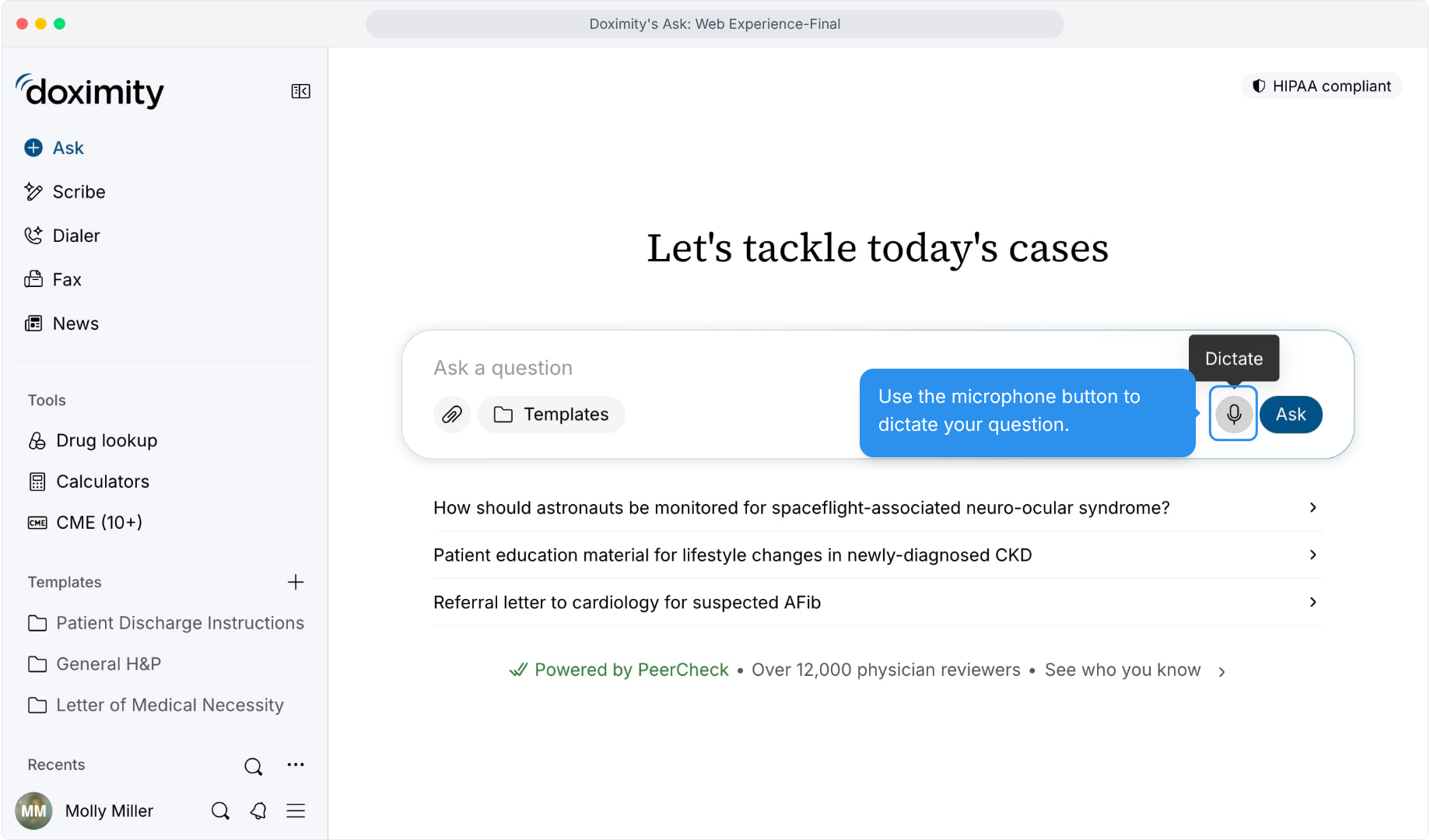
- Dictate Your Question:
The microphone sits in the prompt box, ready whenever you'd rather talk than type.
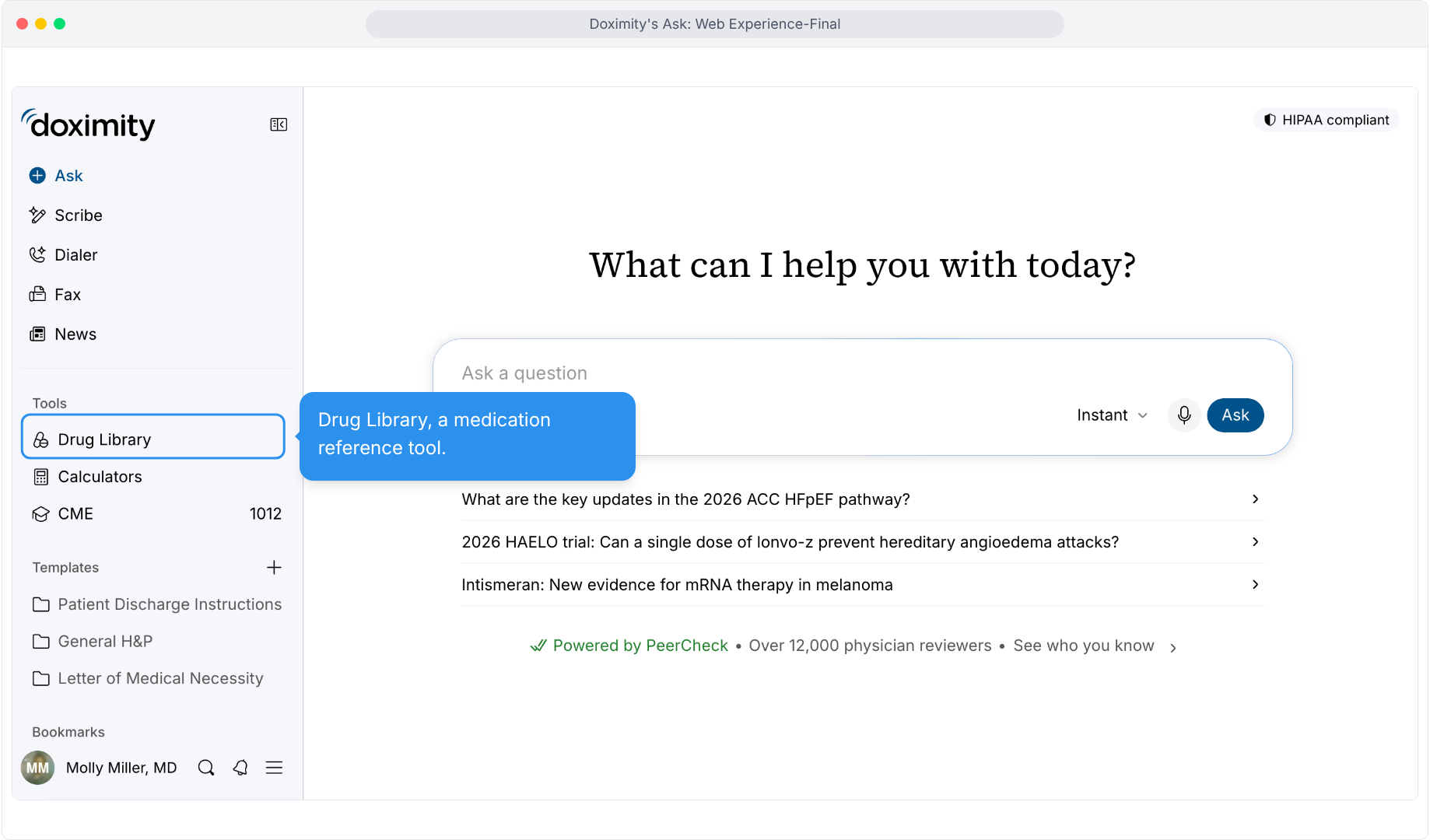
- Find Medication References
Look up a drug from the sidebar without leaving your workspace.
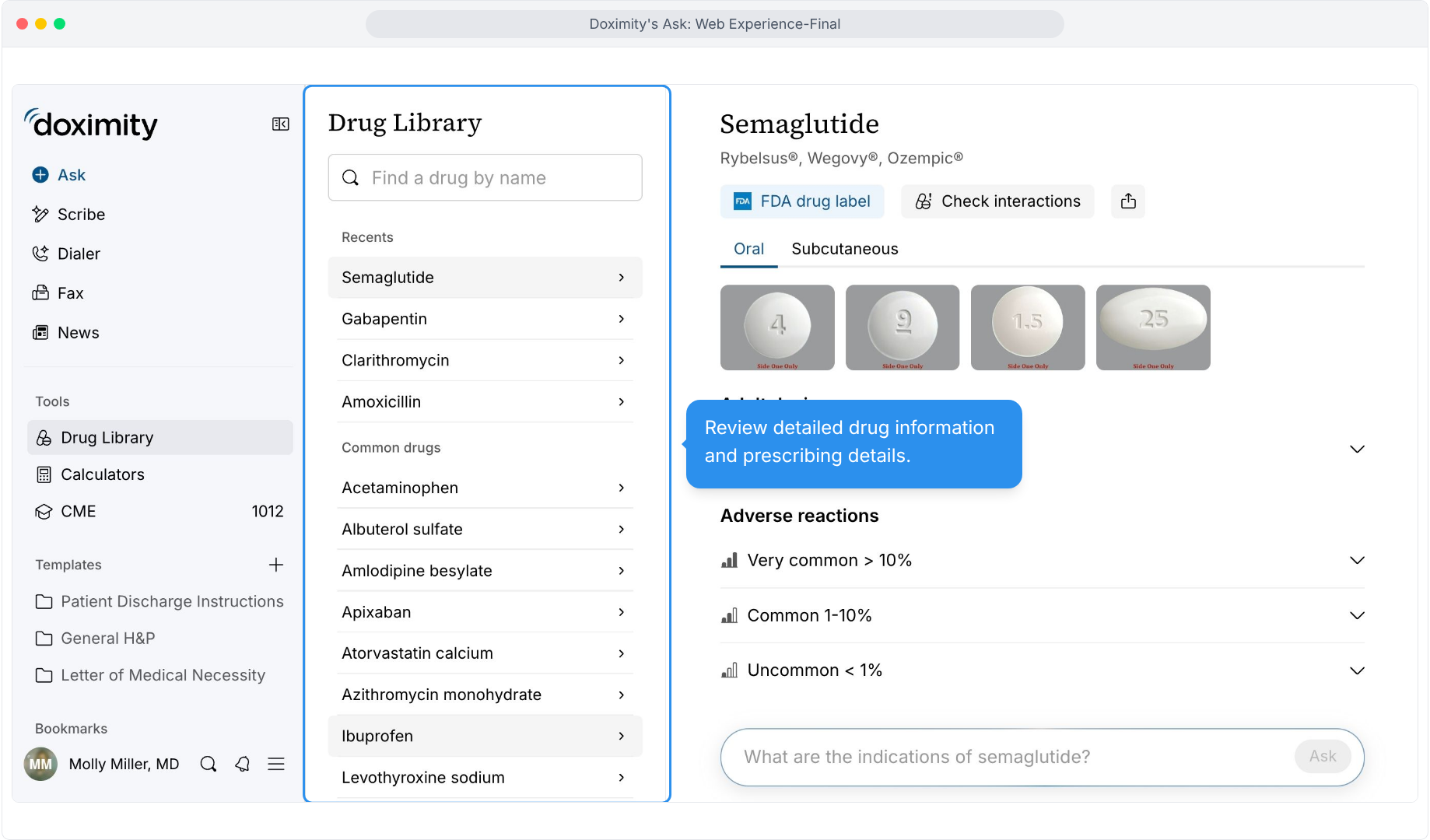
- Review Drug Details
The FDA drug label, dosage forms, and adverse reactions are all in one view.
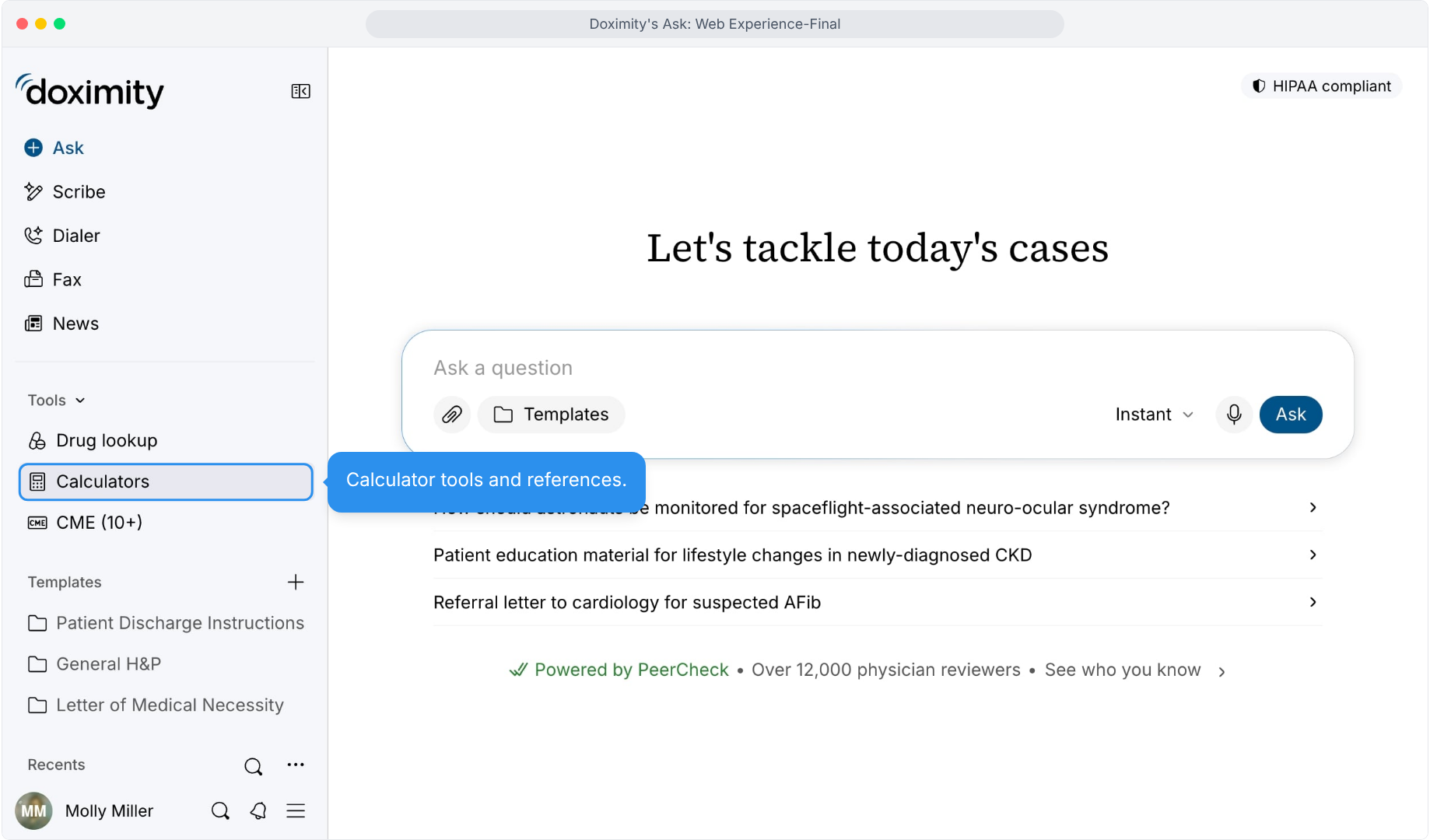
- Find Clinical Calculators
One menu item opens the full list of references.
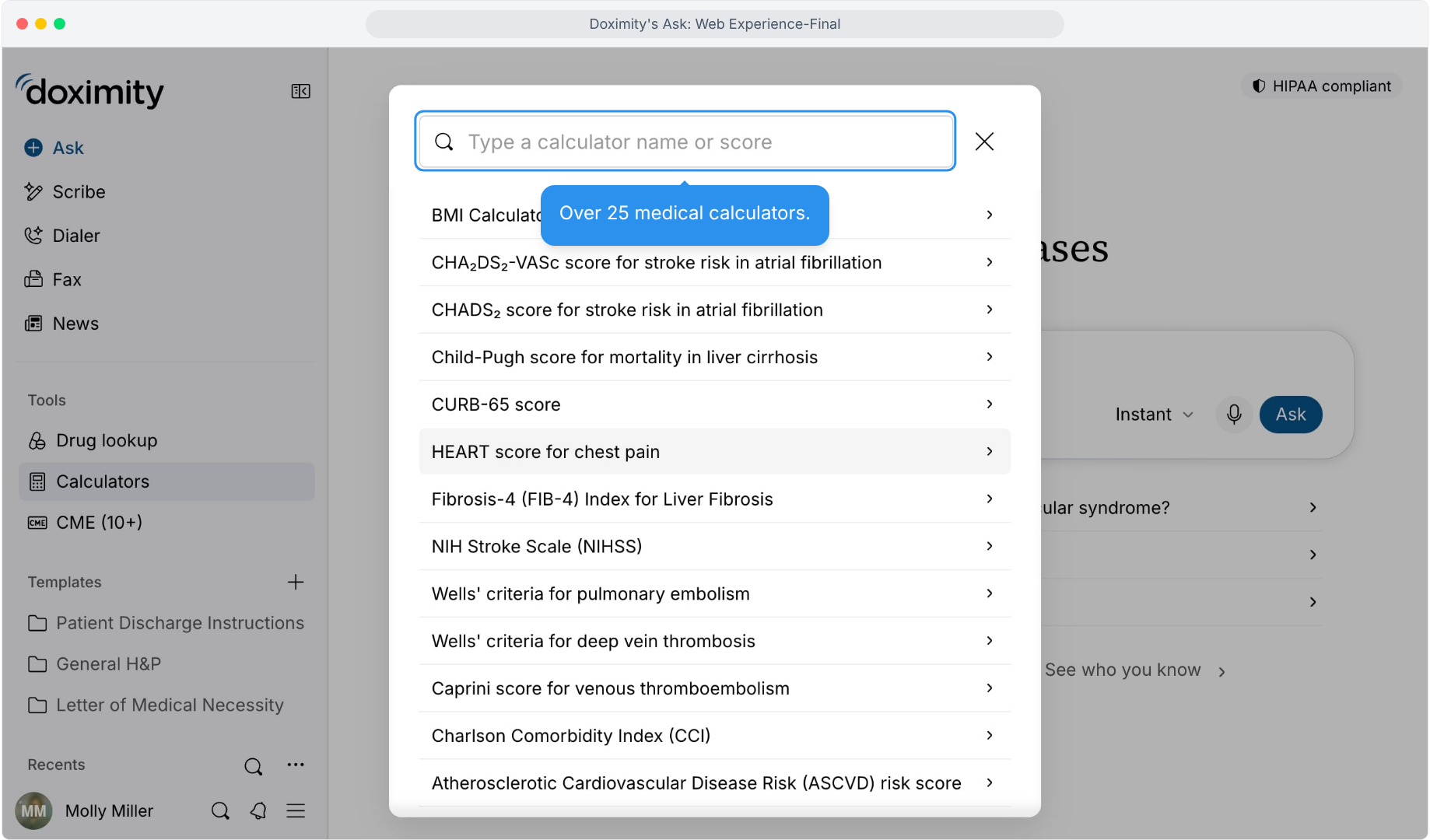
- Browse 25+ Medical Calculators
Search by name or scroll the list, from the HEART score to CURB-65 to Wells' criteria.
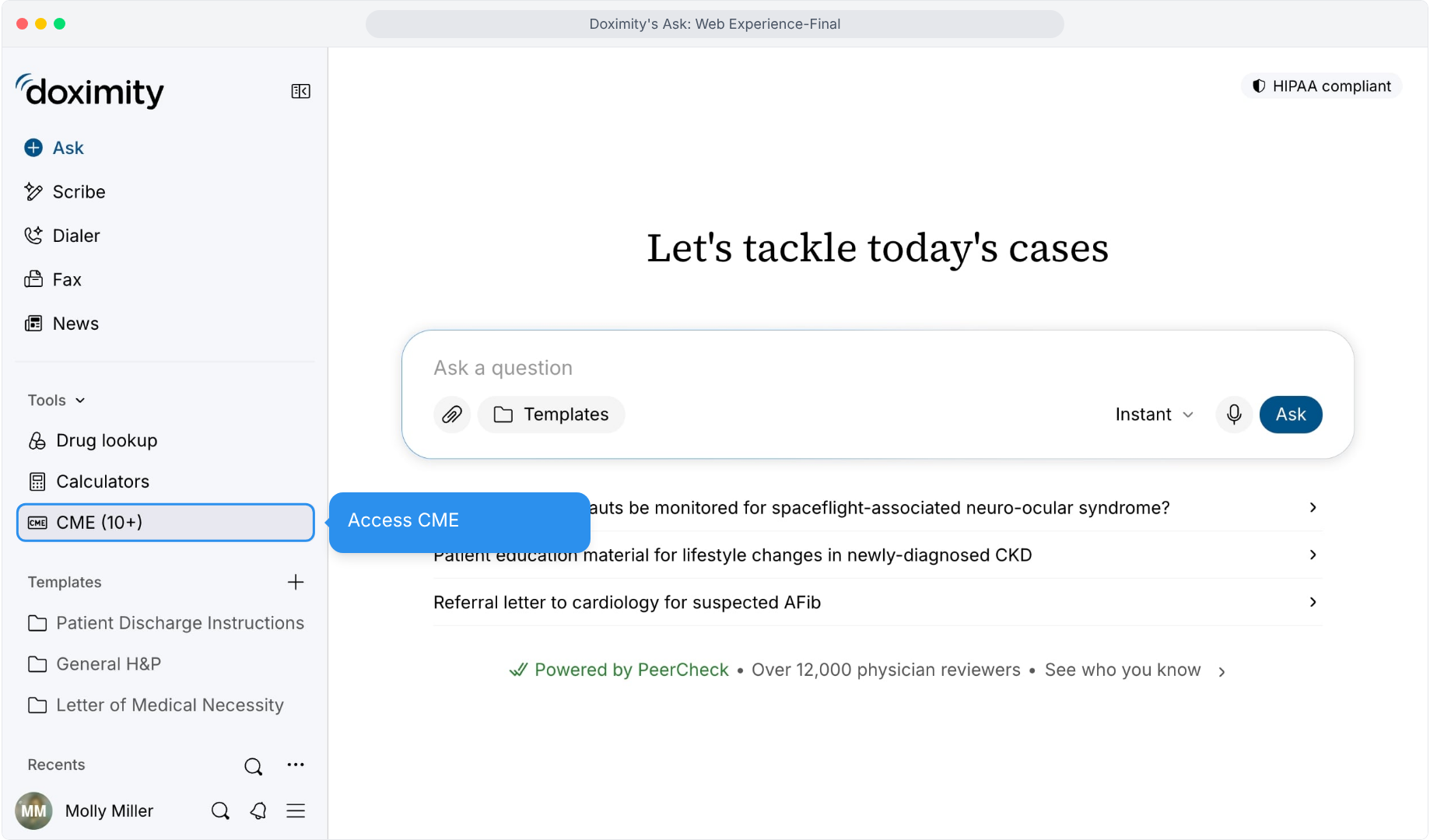
- Open CME From the Sidebar
CME sits in the Tools menu, so credit-eligible reading is easy to find.
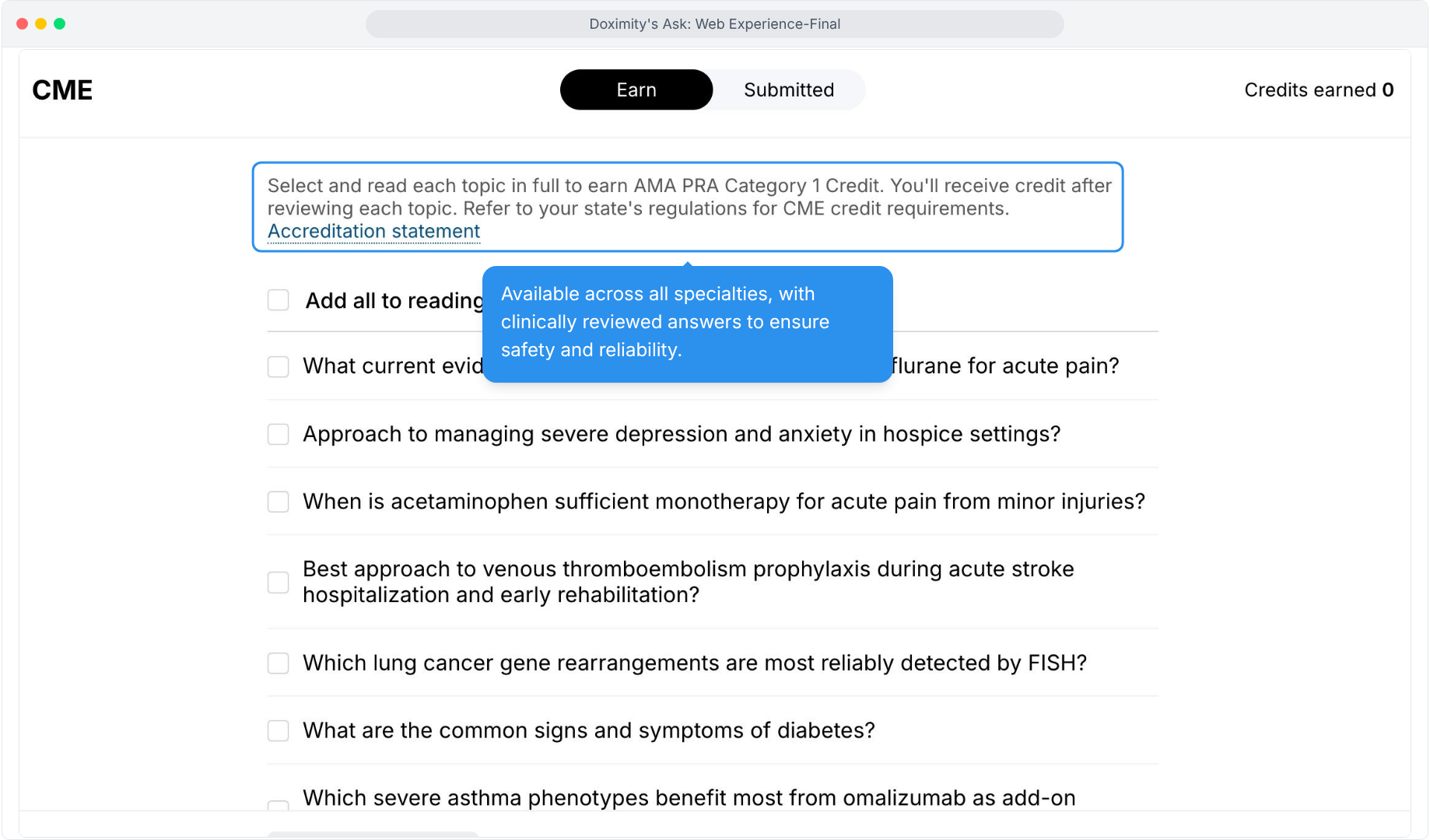
- Select Topics for CME Credit
Earn and Submitted tabs and a running credit count keep your progress in view.
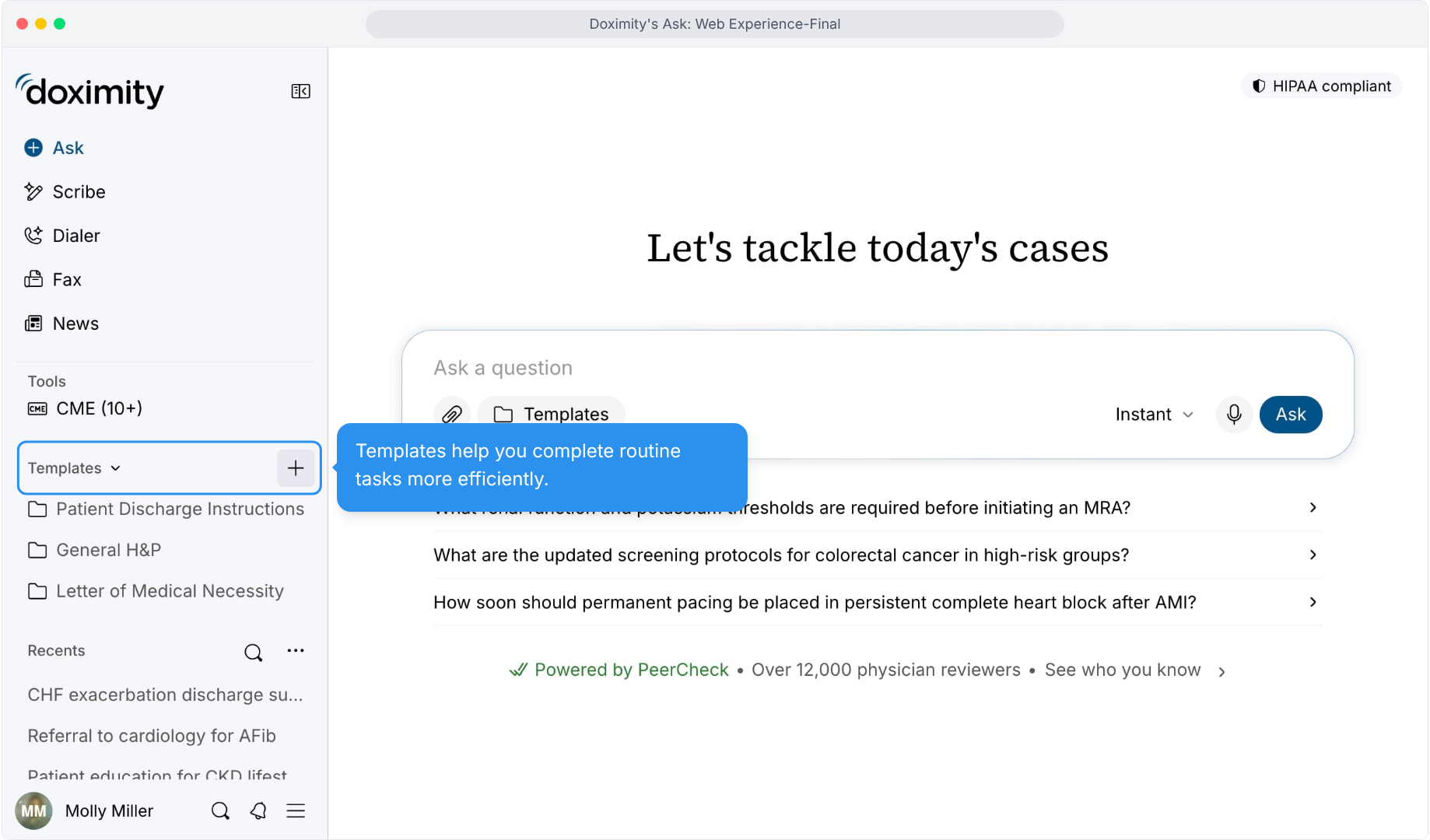
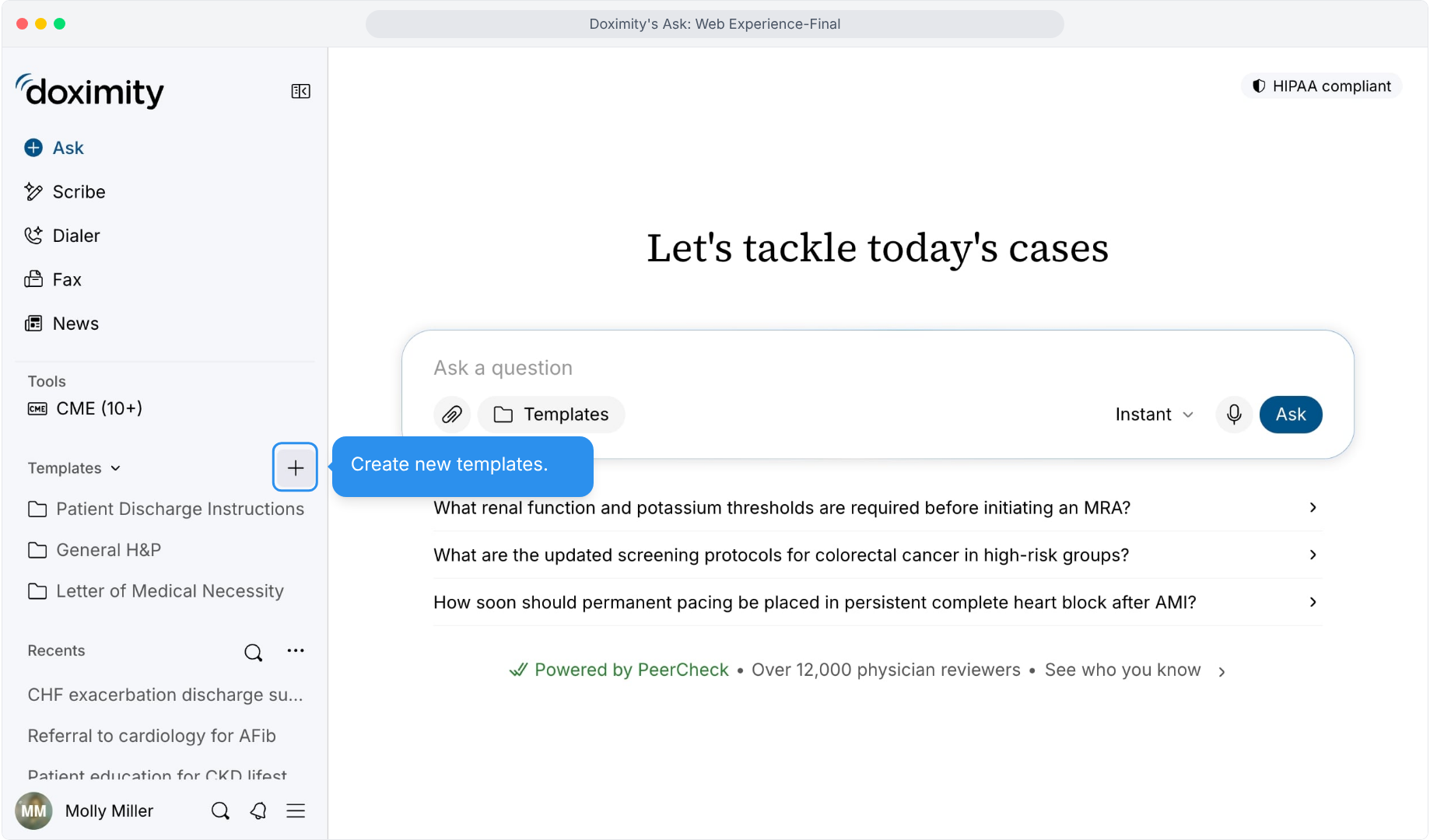
- Use Templates for Routine Tasks
Your templates sit in the sidebar, ready for recurring documentation.
- Add a New Template
Open and start your own template.
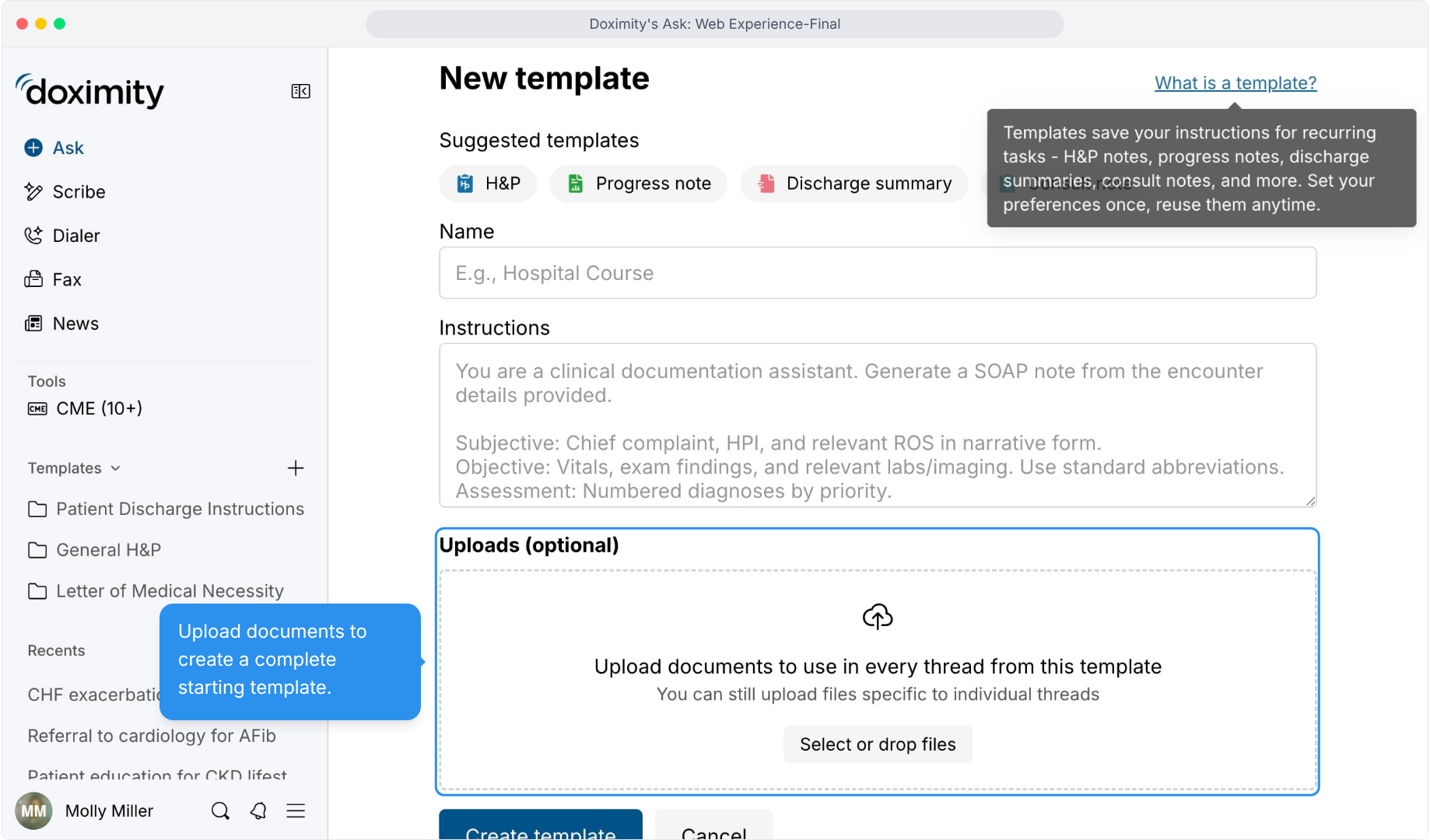
- Build a Template for Your Workflow
Name it, describe how you want the output written, and add files.
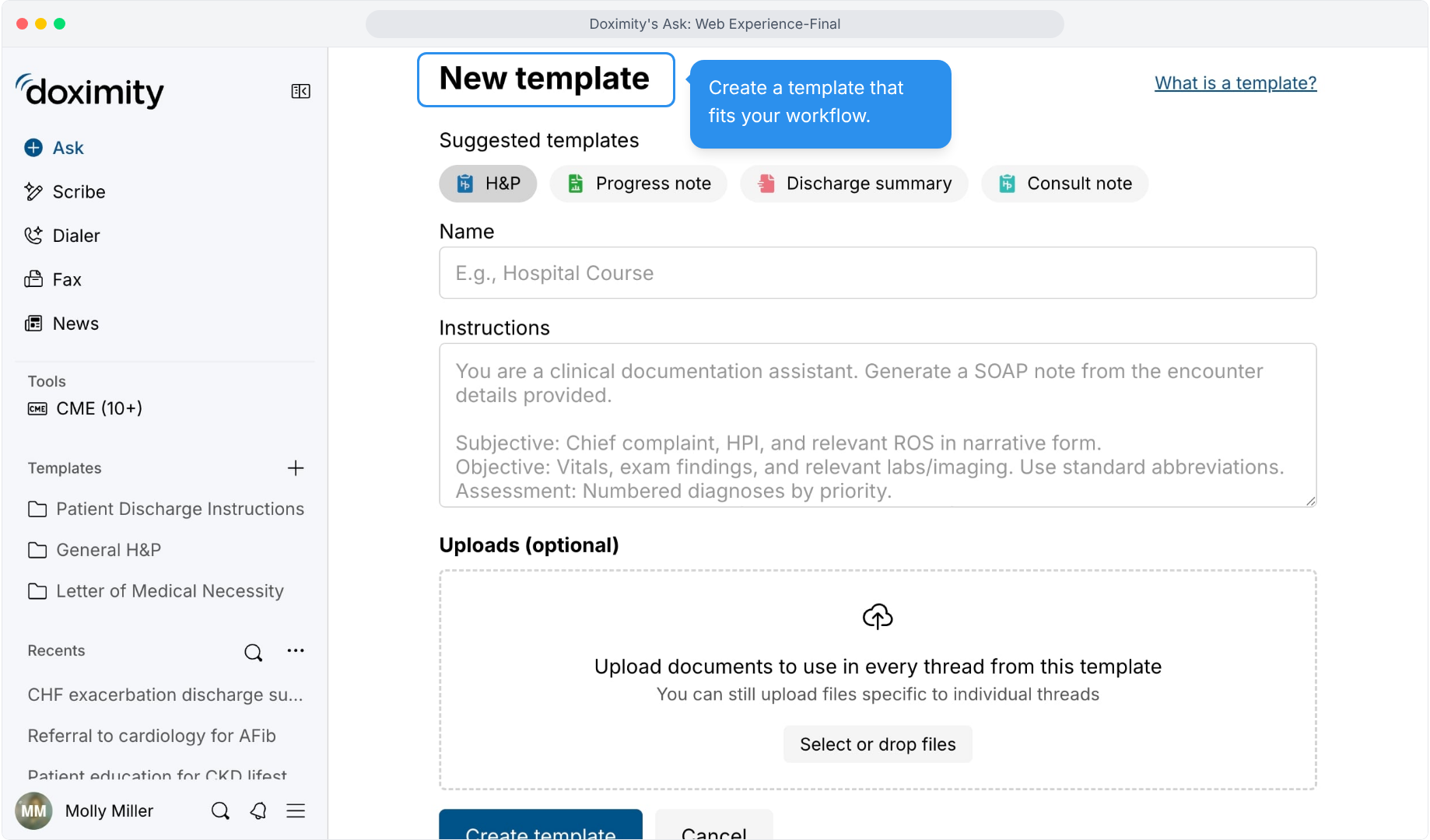
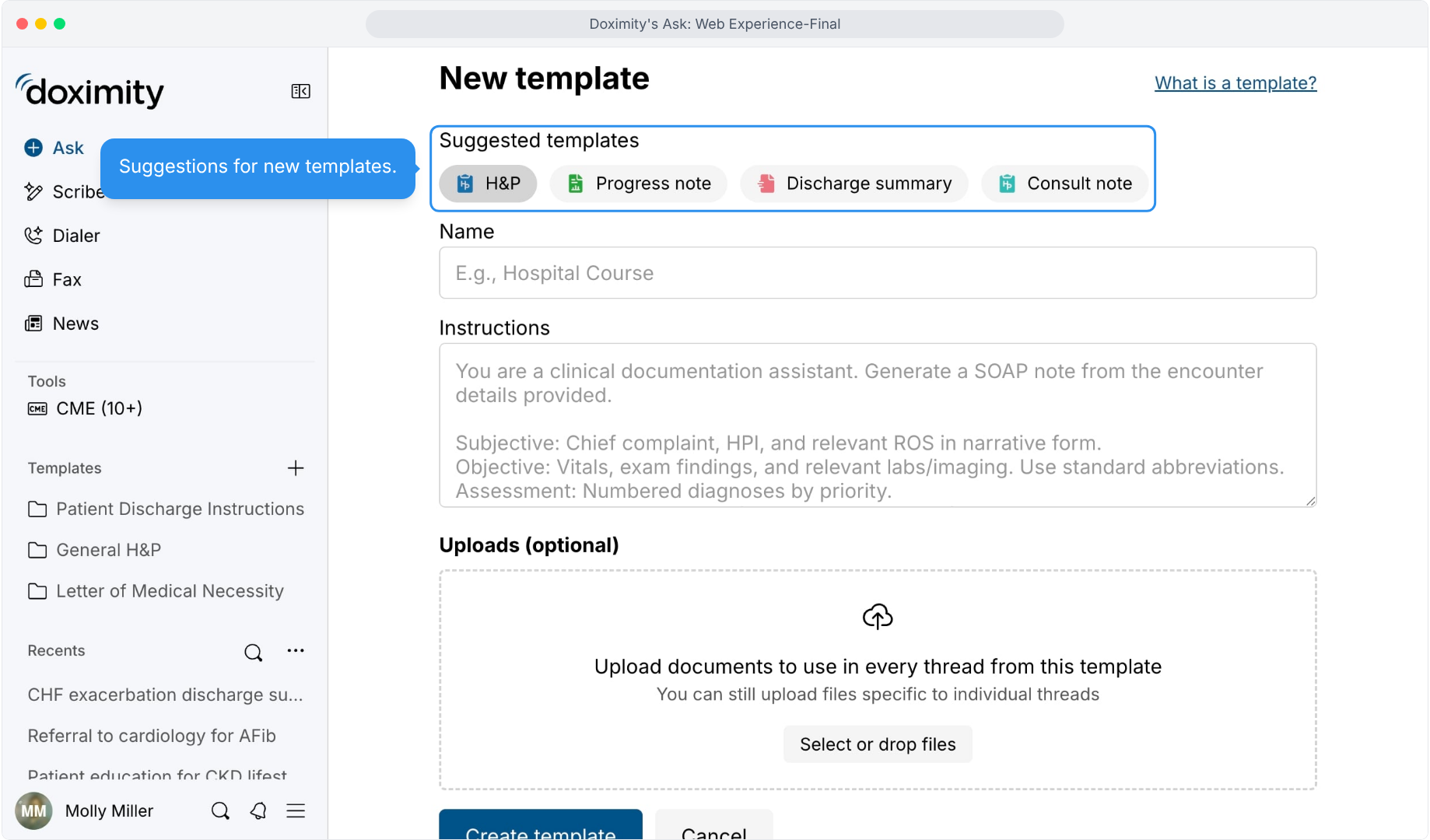
- Start From a Suggested Note Type:
Common documentation types are offered up front, so you don't start from a blank form.
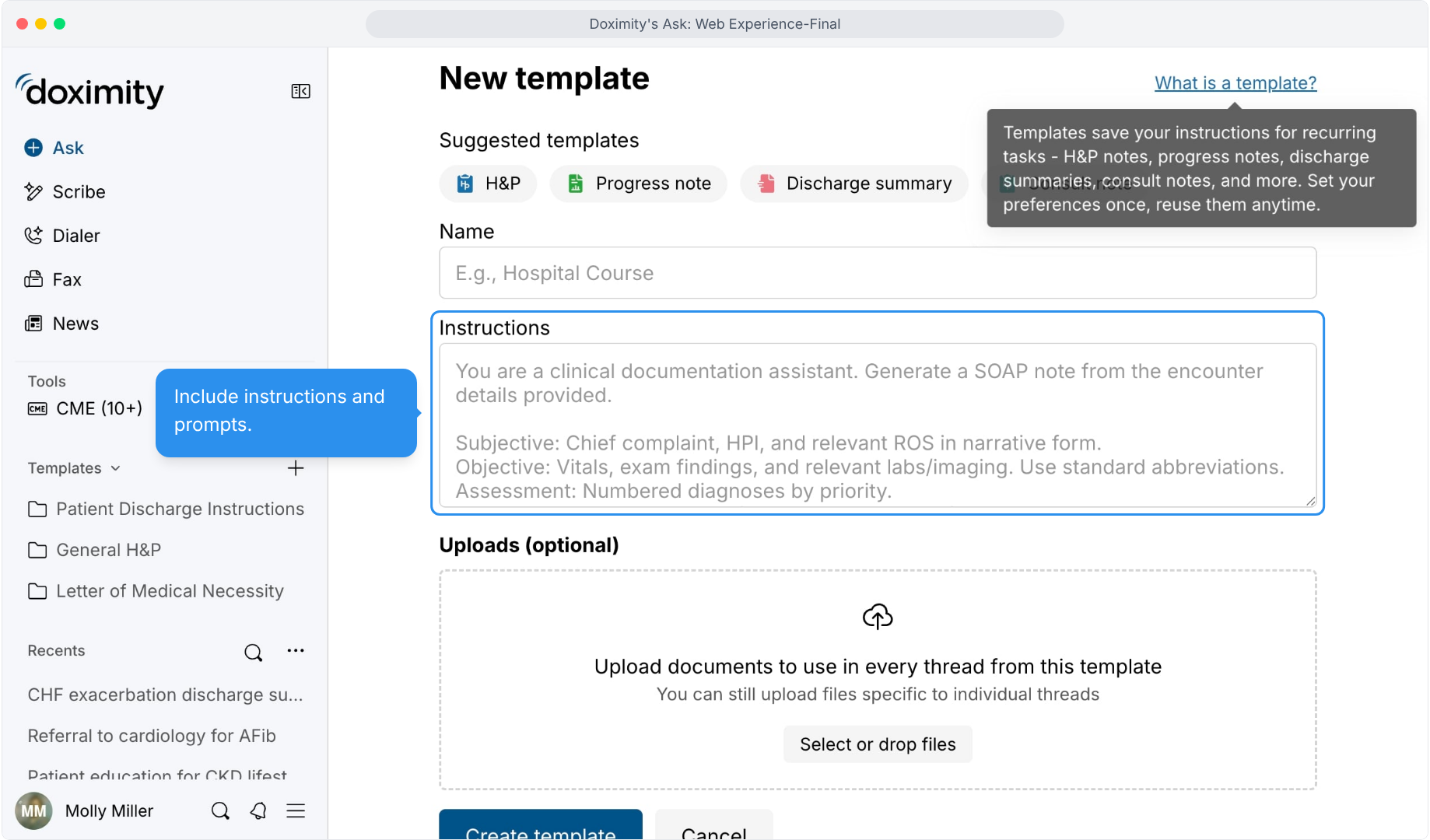
- Include Your Instructions
The Instructions box tells the template how to write, with a SOAP note example as placeholder text.
- Add Documents to the Template
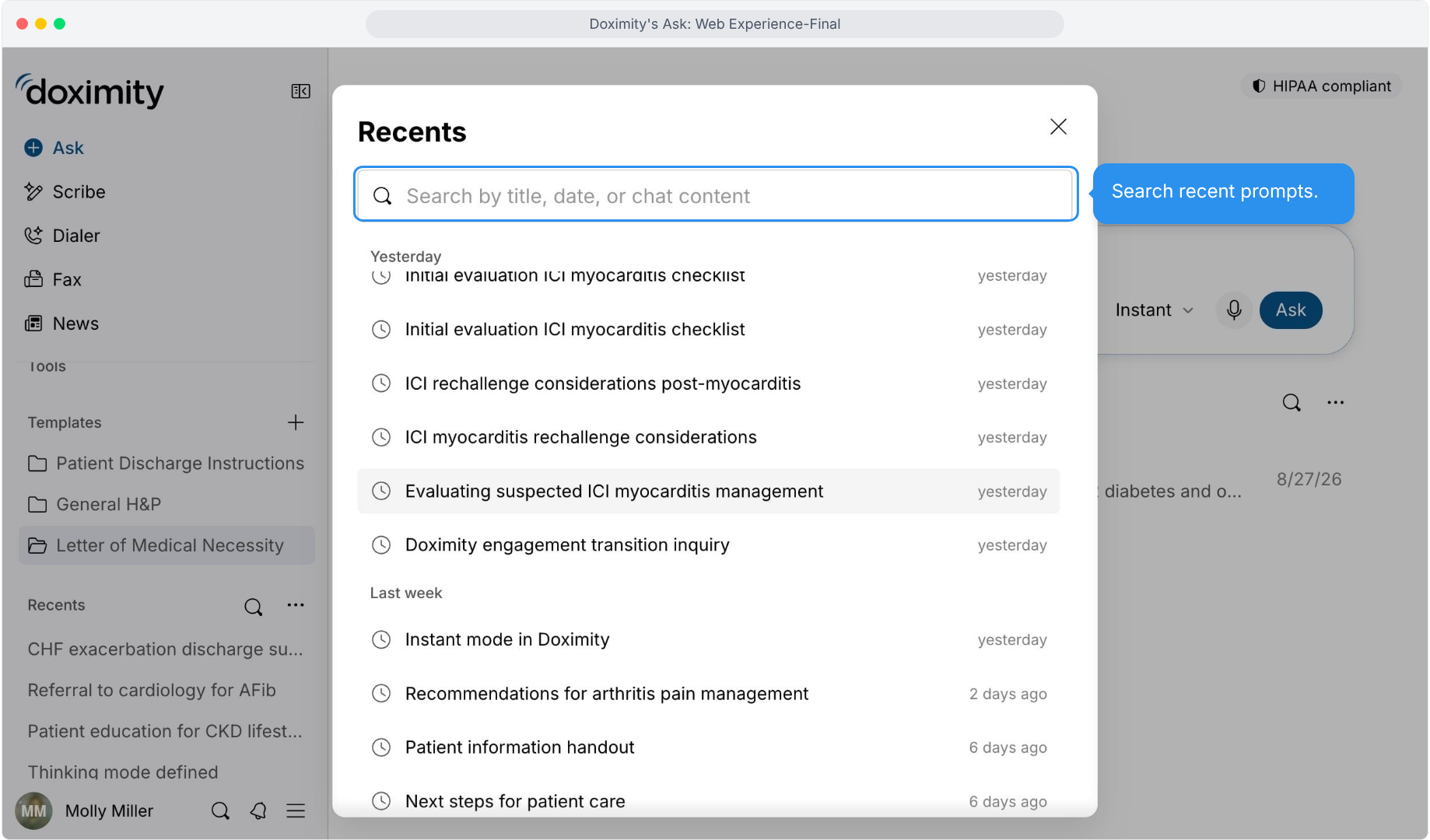
- Search Your Recent Prompts:
Search covers the title, the date, and what was said in the chat.
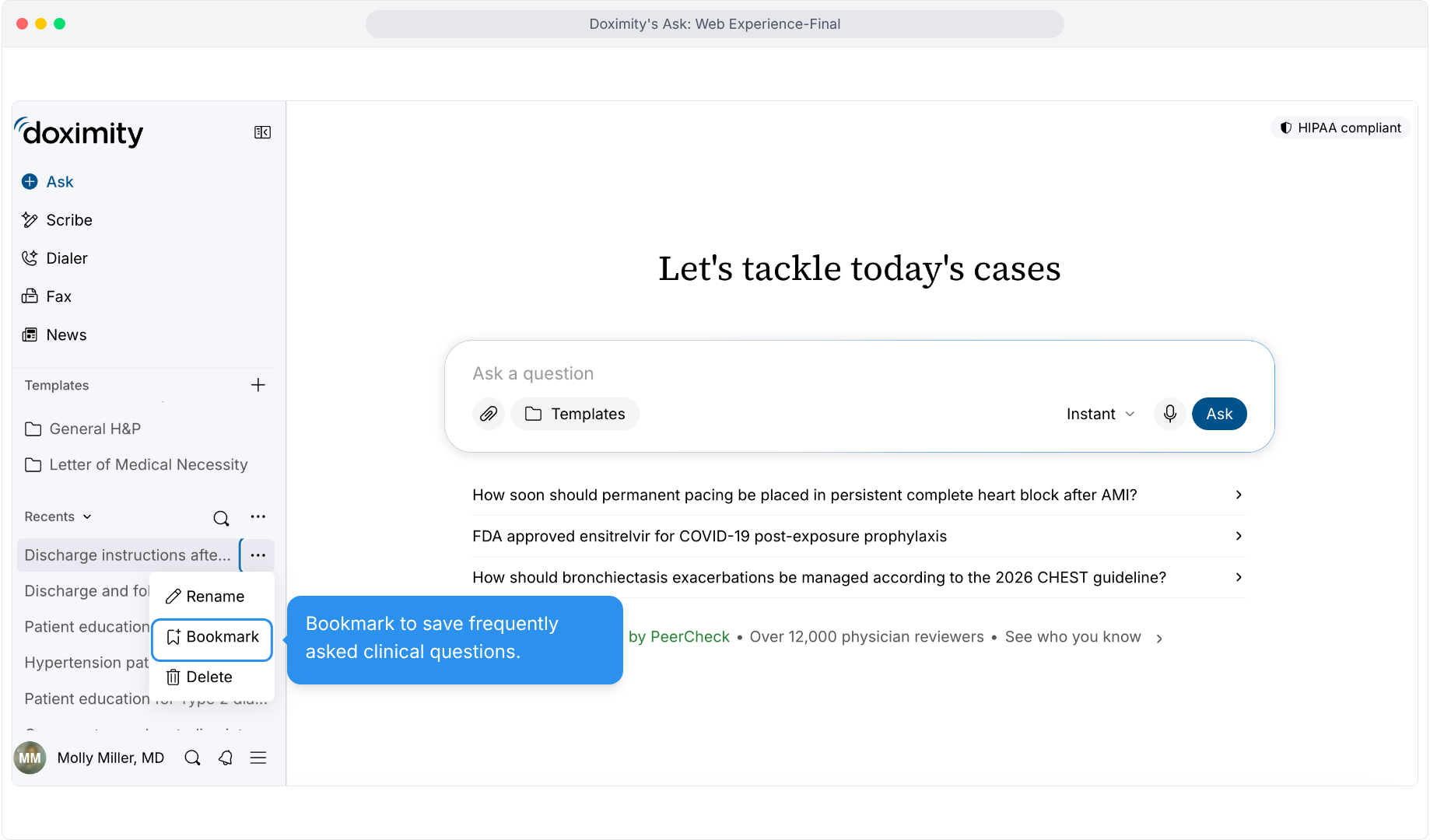
- Bookmark Frequent Questions
Save the questions you return to often so they're easy to find again.
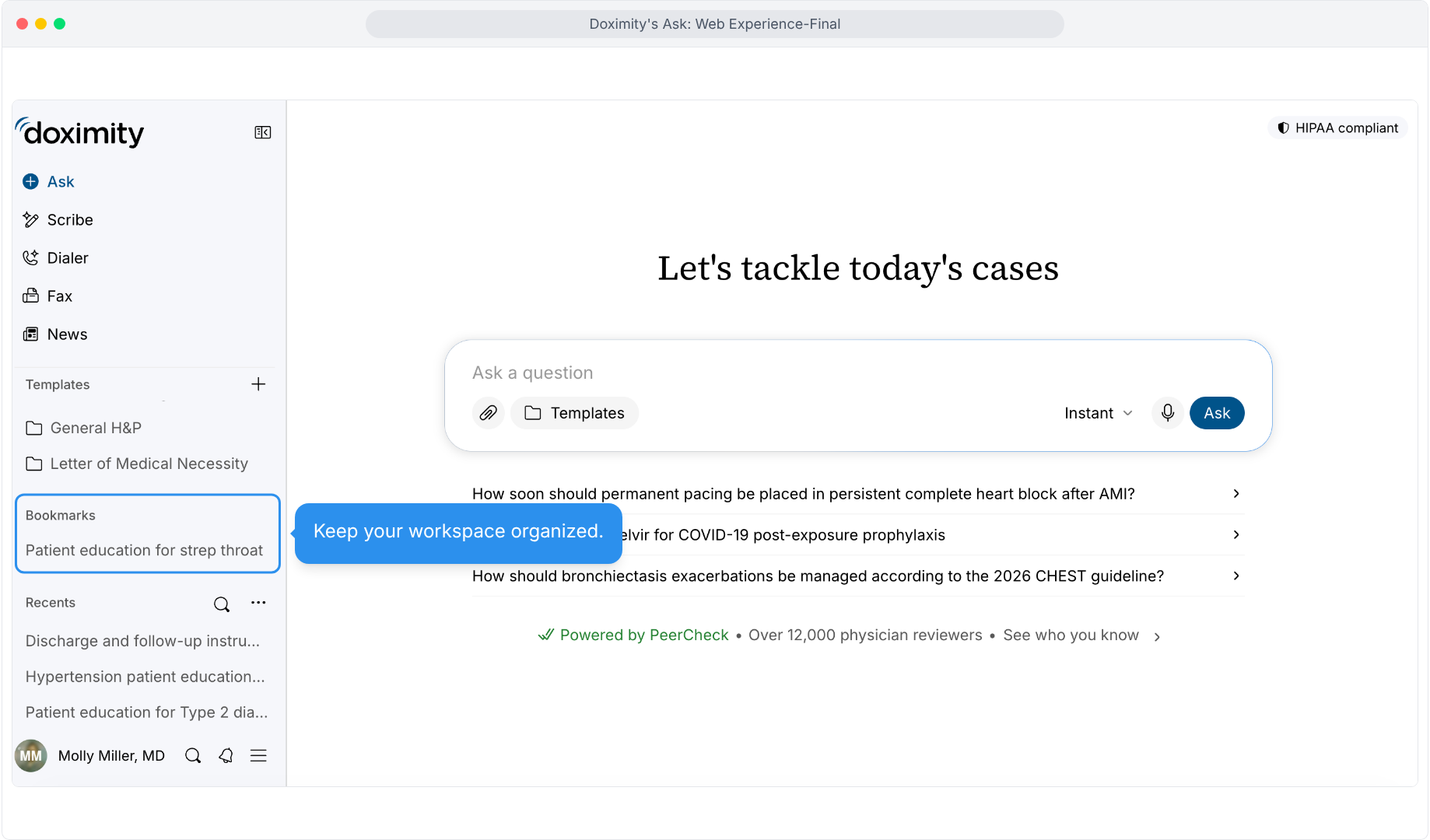
- Organize Your Workspace
Bookmarked threads appear in their own section above Recents, so your go-to questions stay near the top.

Desktop experience
Doximity Ask: Web Experience
Doximity’s HIPAA-compliant clinical AI assistant, with flexible tools that adapt to the demands of your workflow.