- Attach a Screengrab
Capture labs, imaging reports and chart notes directly from your EHR.
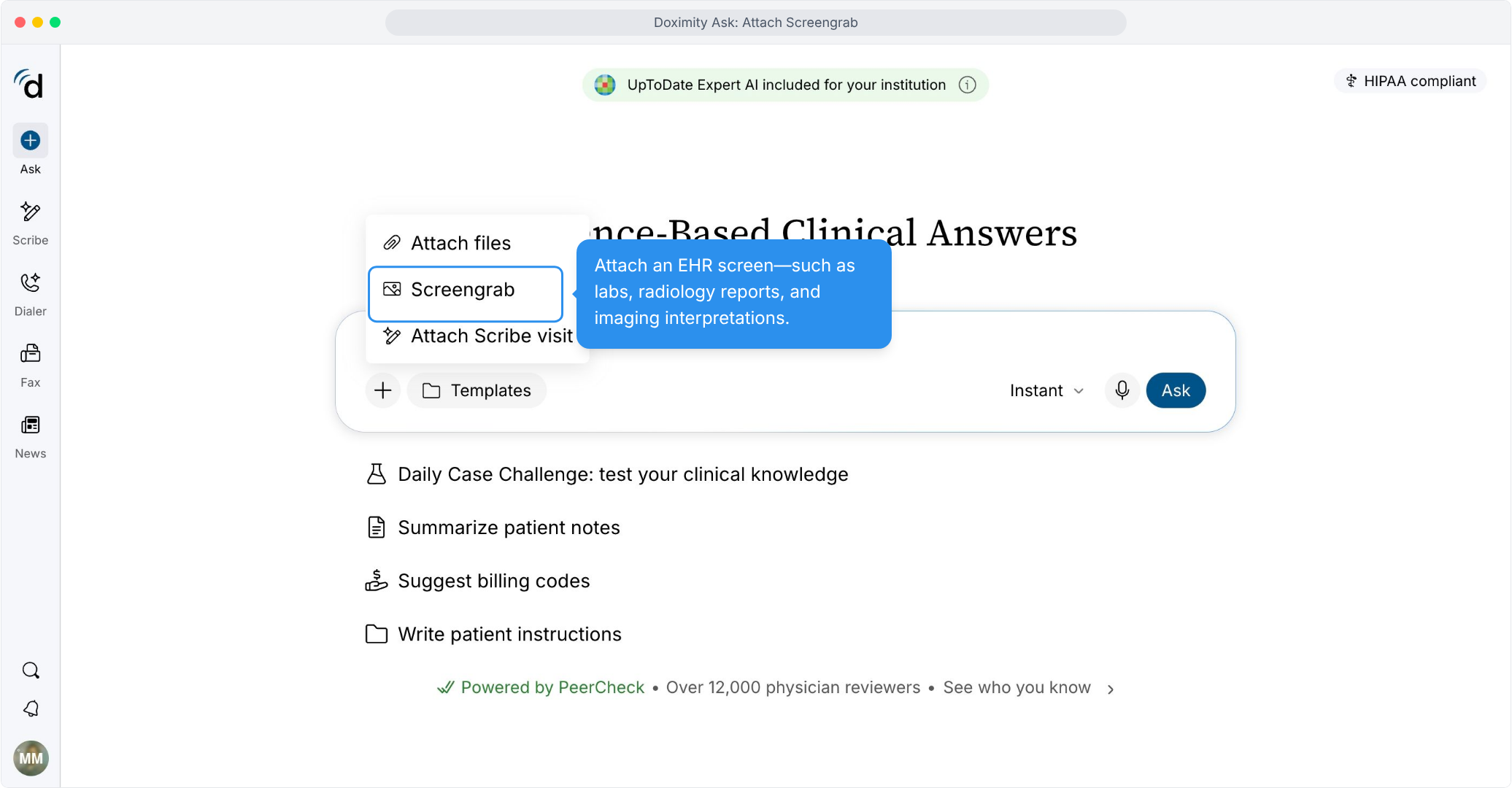
- Private and secure
Screengrabs stay private to your account and aren’t used to train models.
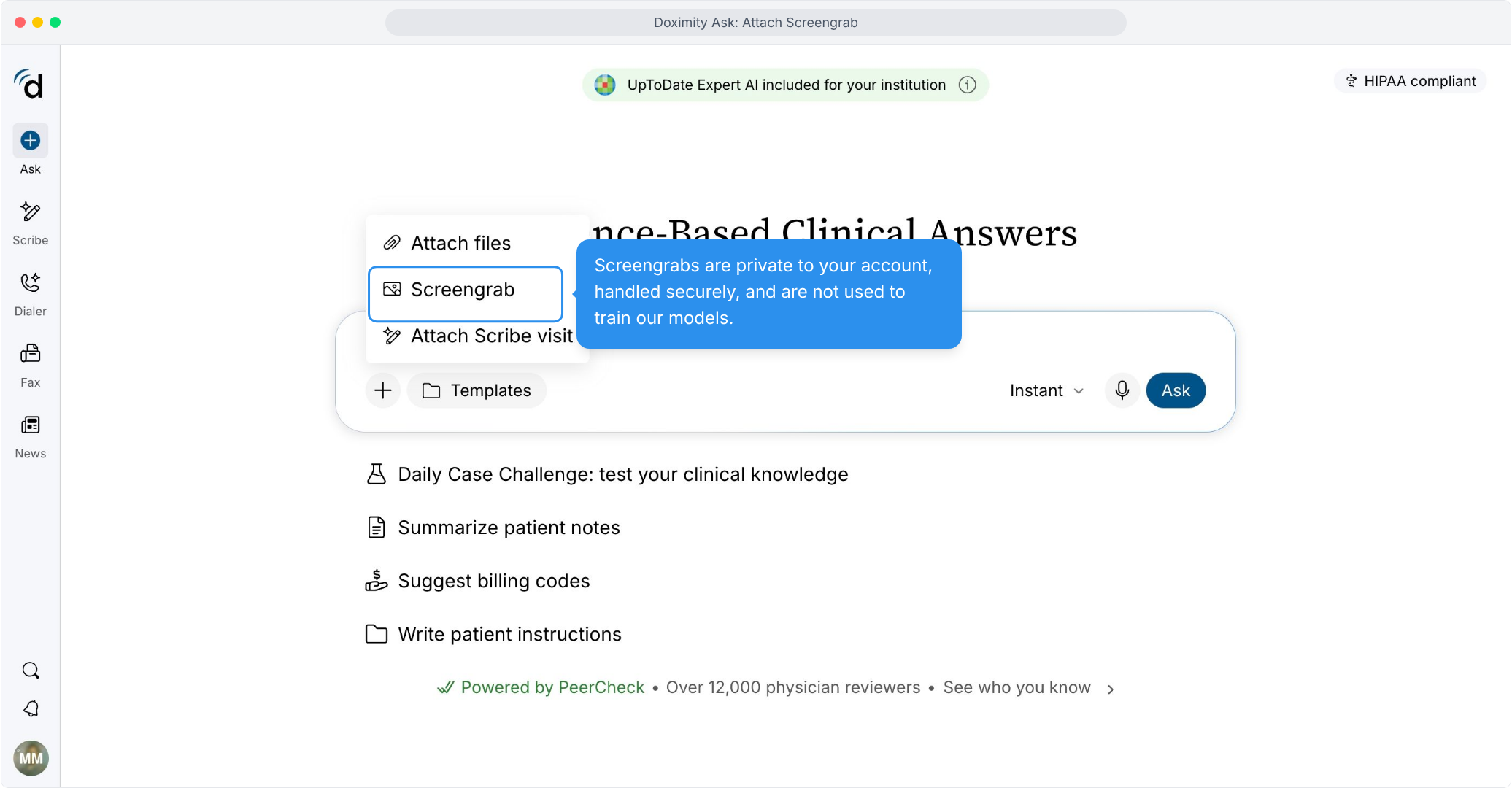
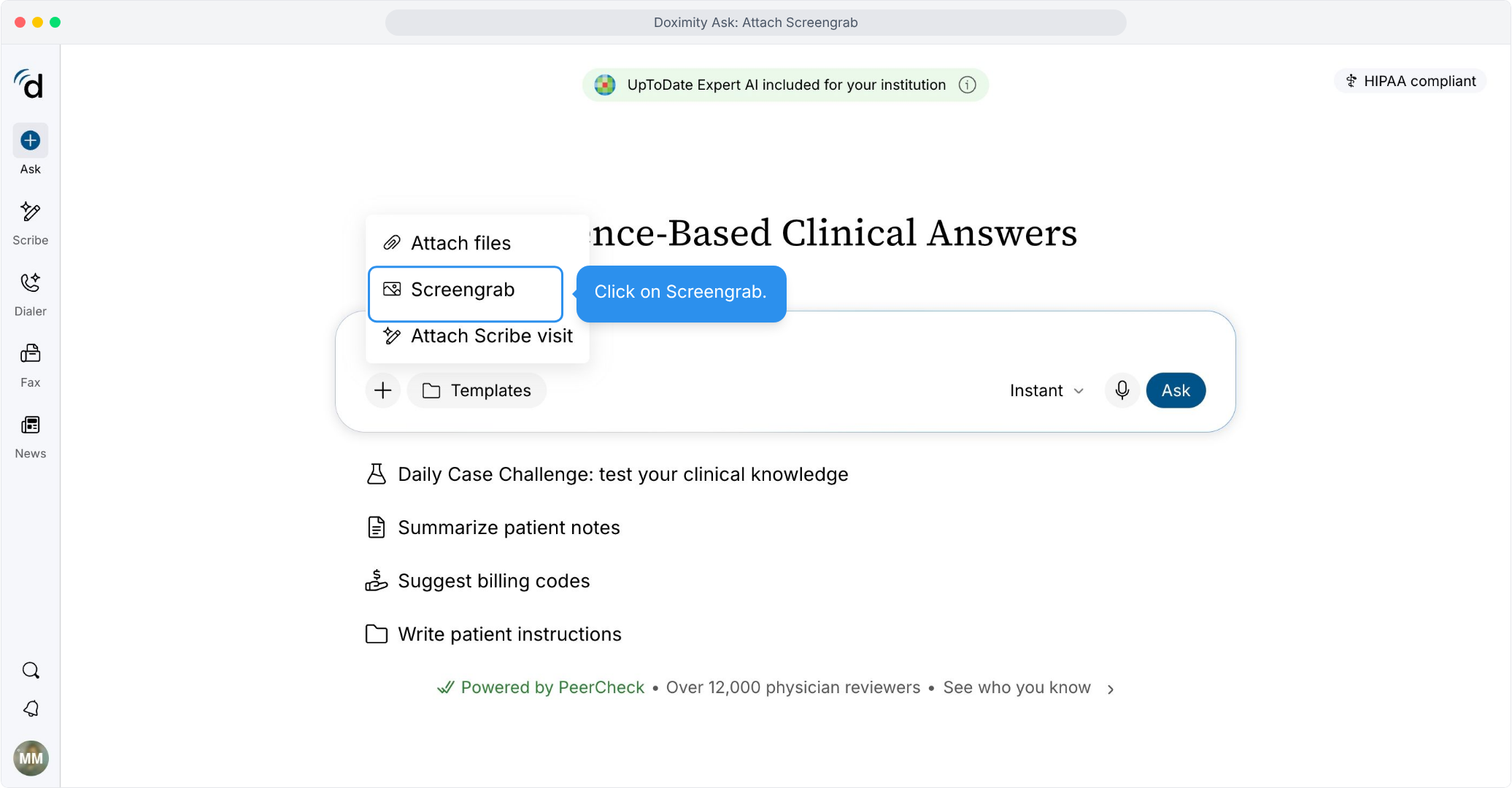
- Select Screengrab
Choose Screengrab from the attach menu.
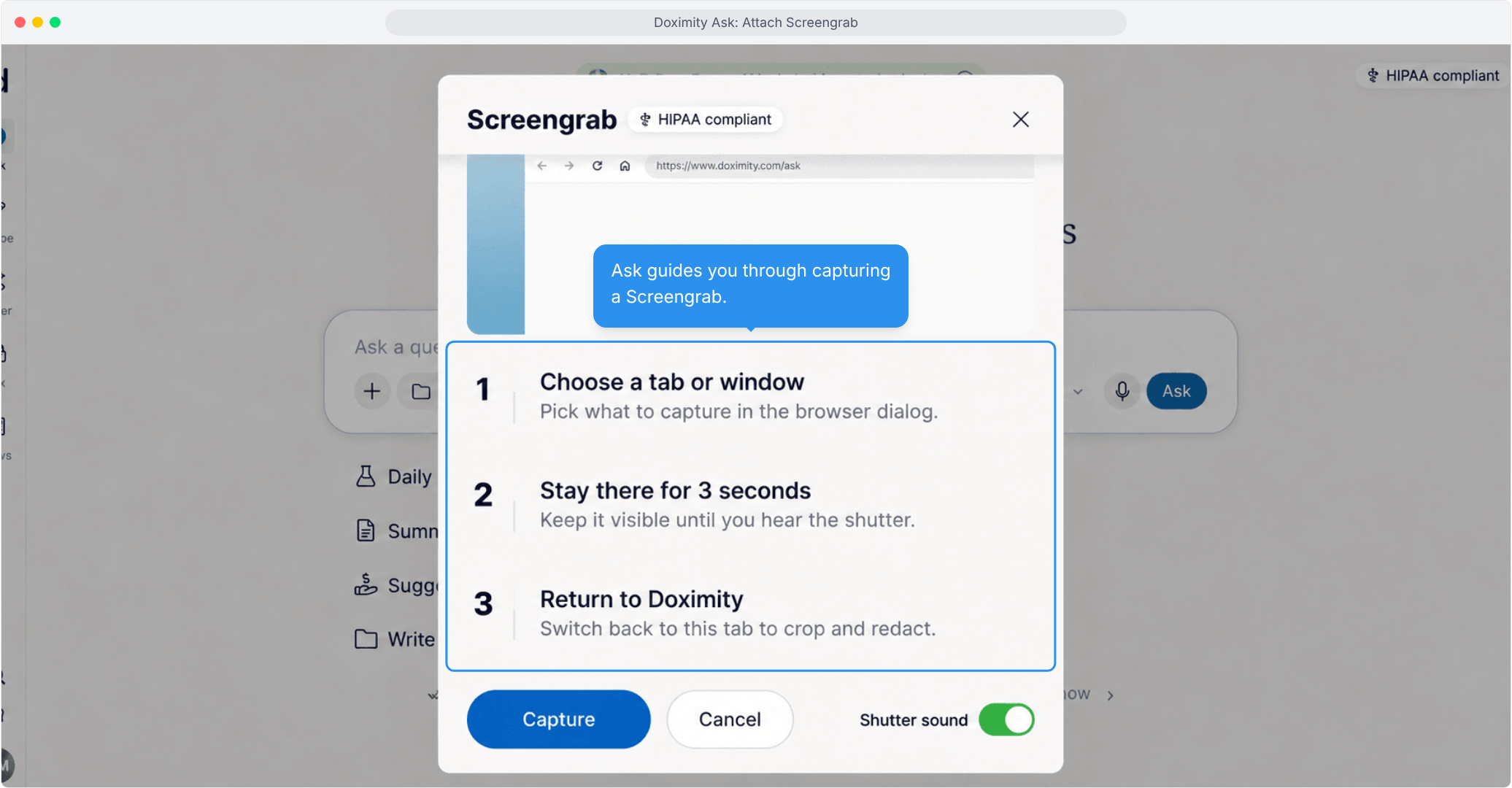
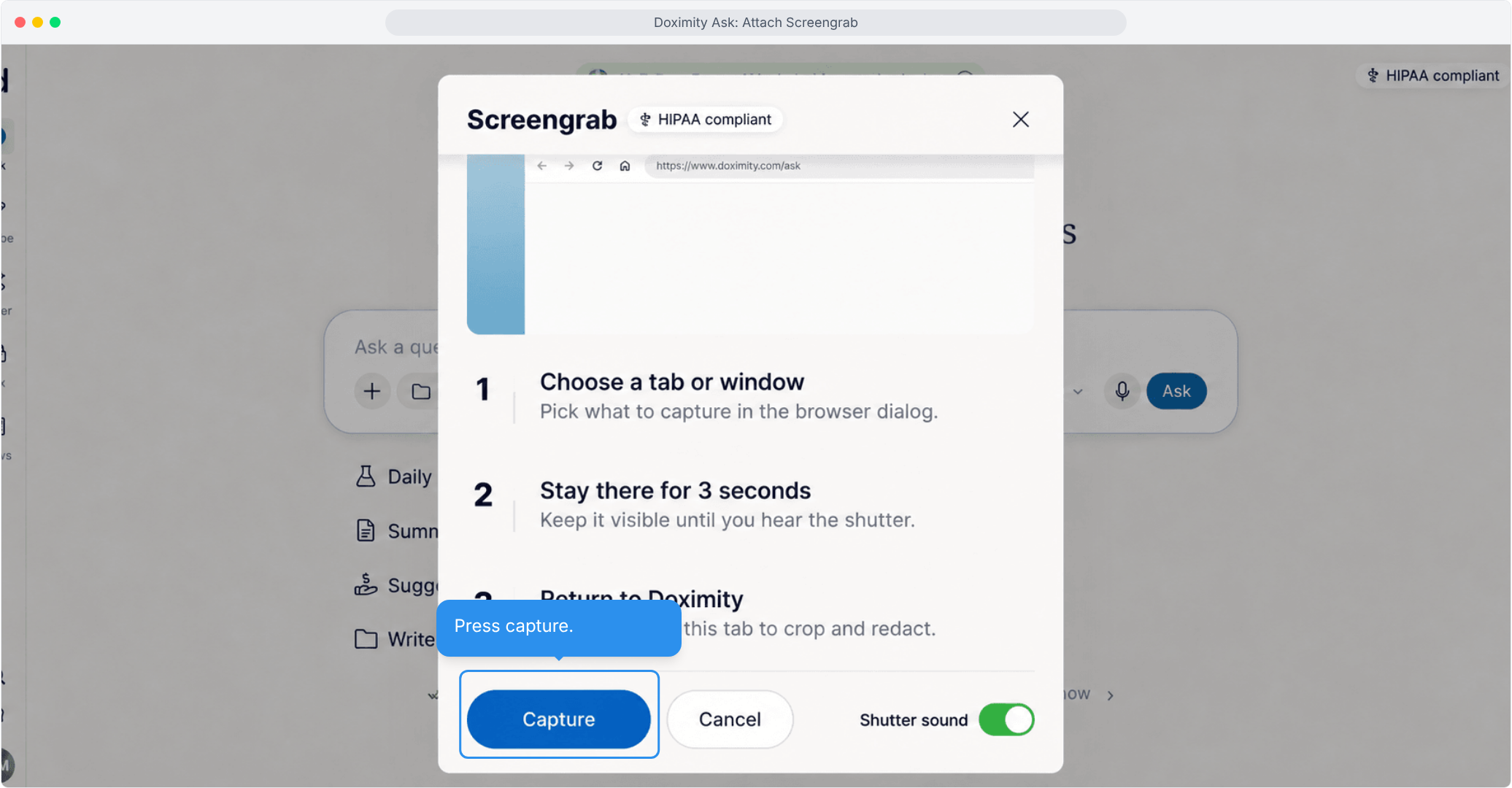
- Follow three quick steps
Choose a screen, hold for 3 seconds, then return to Doximity.
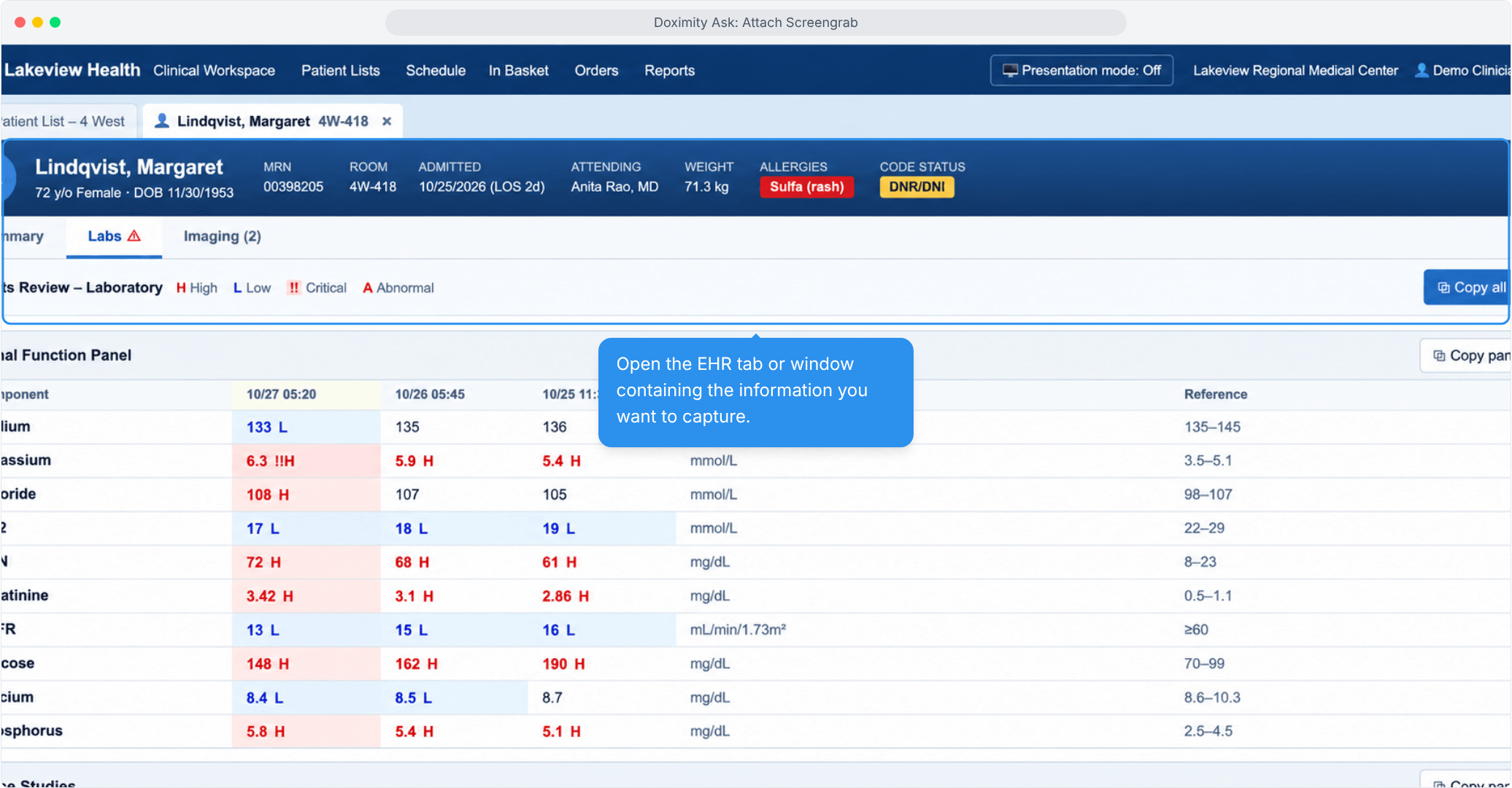
- Open your EHR
Pull up the EHR tab or window that has the information you need.
- Press Capture
Select Capture to start.
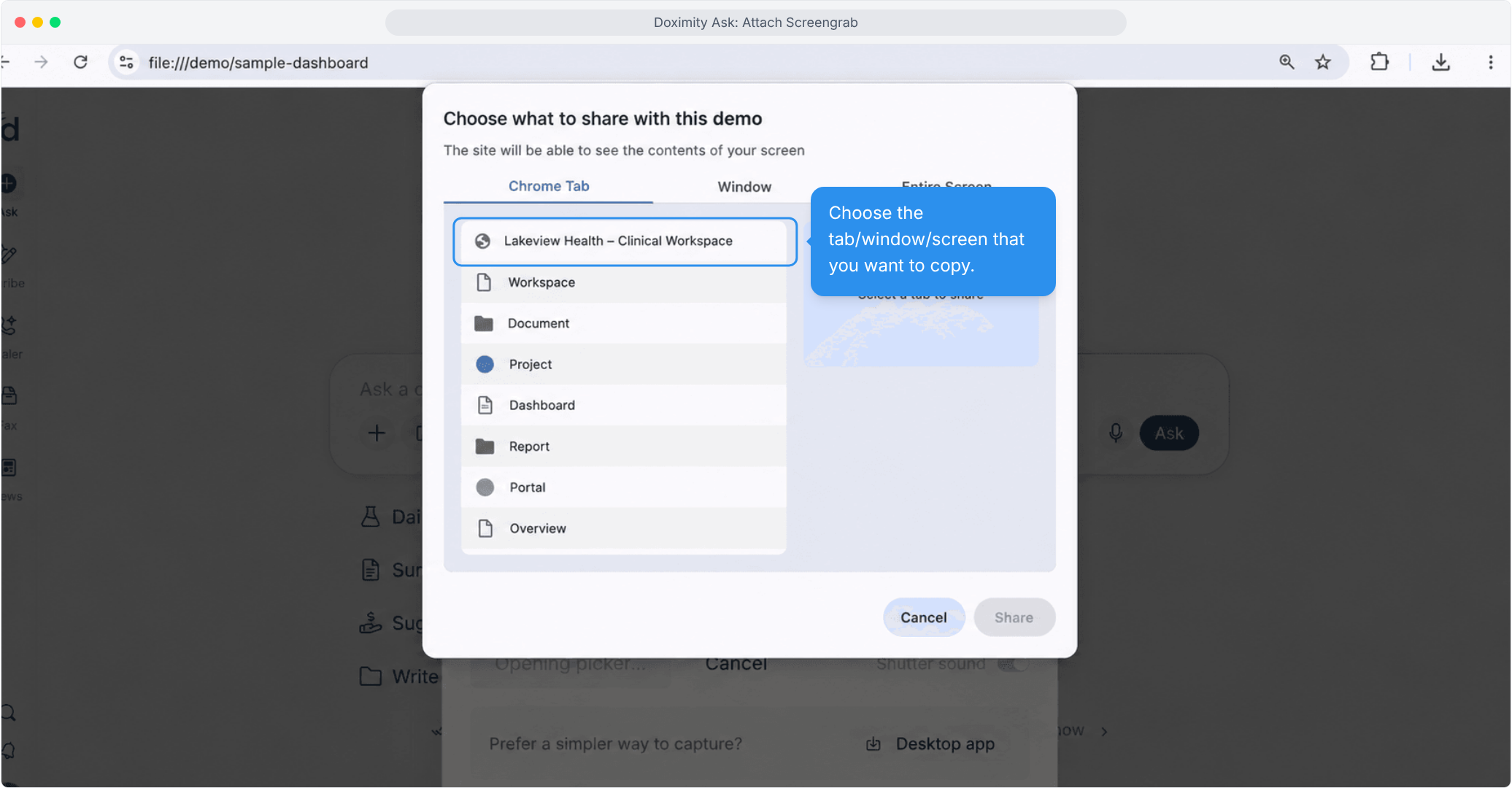
- Choose which image to capture
Pick the tab, window or screen showing your EHR.
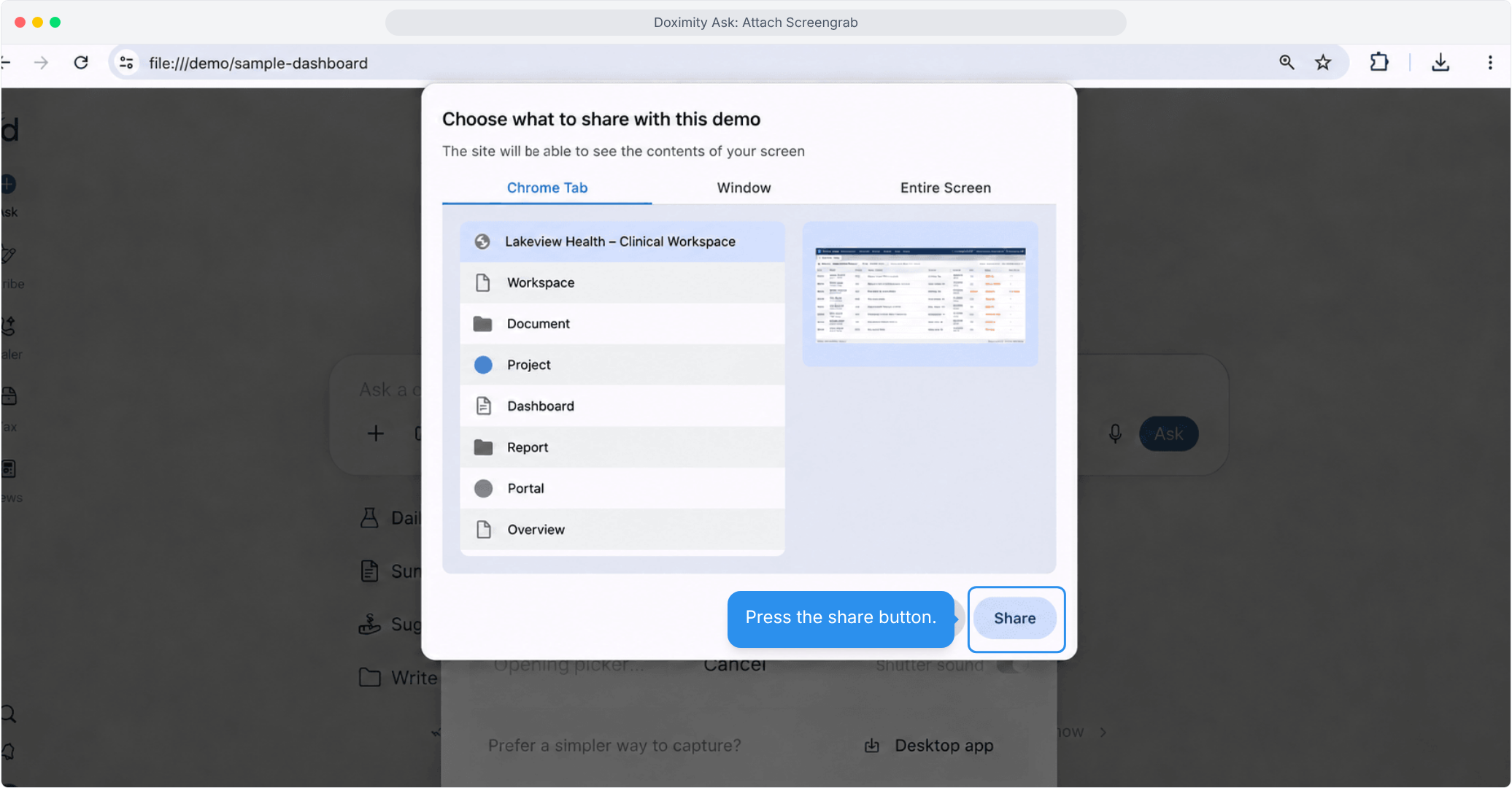
- Select Share
Select Share to let Ask see that screen.
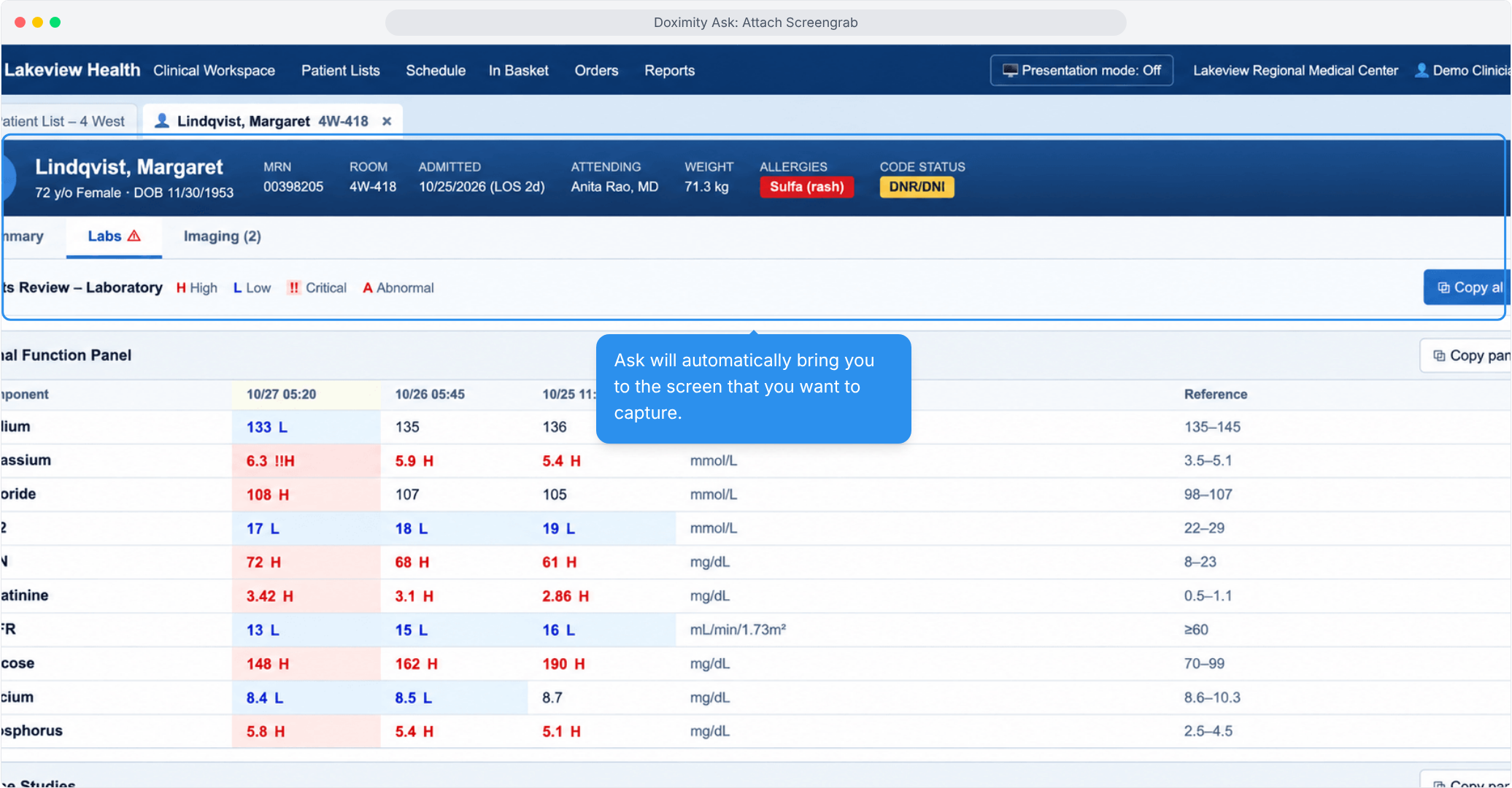
- Ask switches to your EHR
Ask opens the screen you picked so it can capture it.
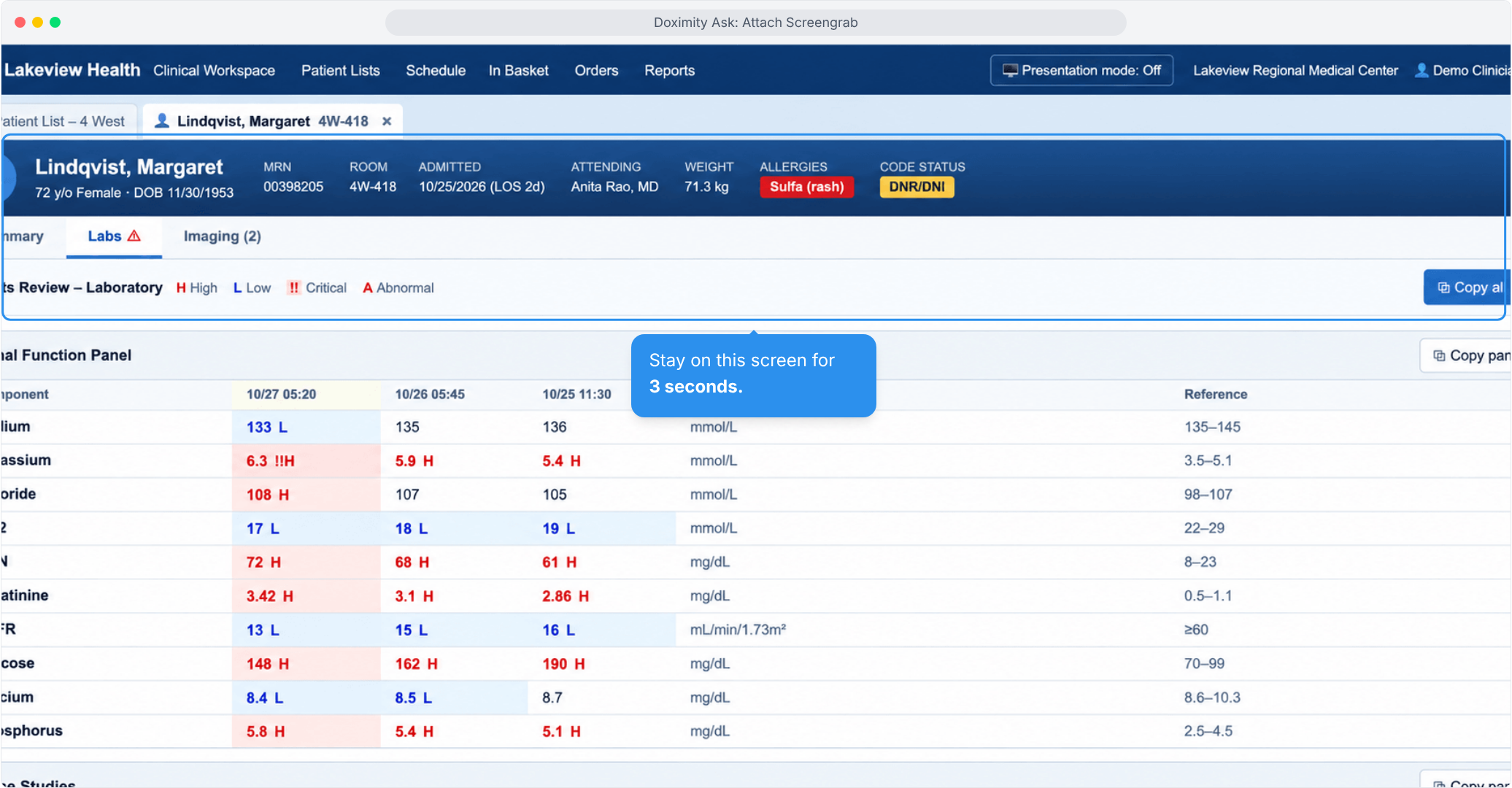
- Hold for 3 seconds
Keep the screen visible while Ask captures it.
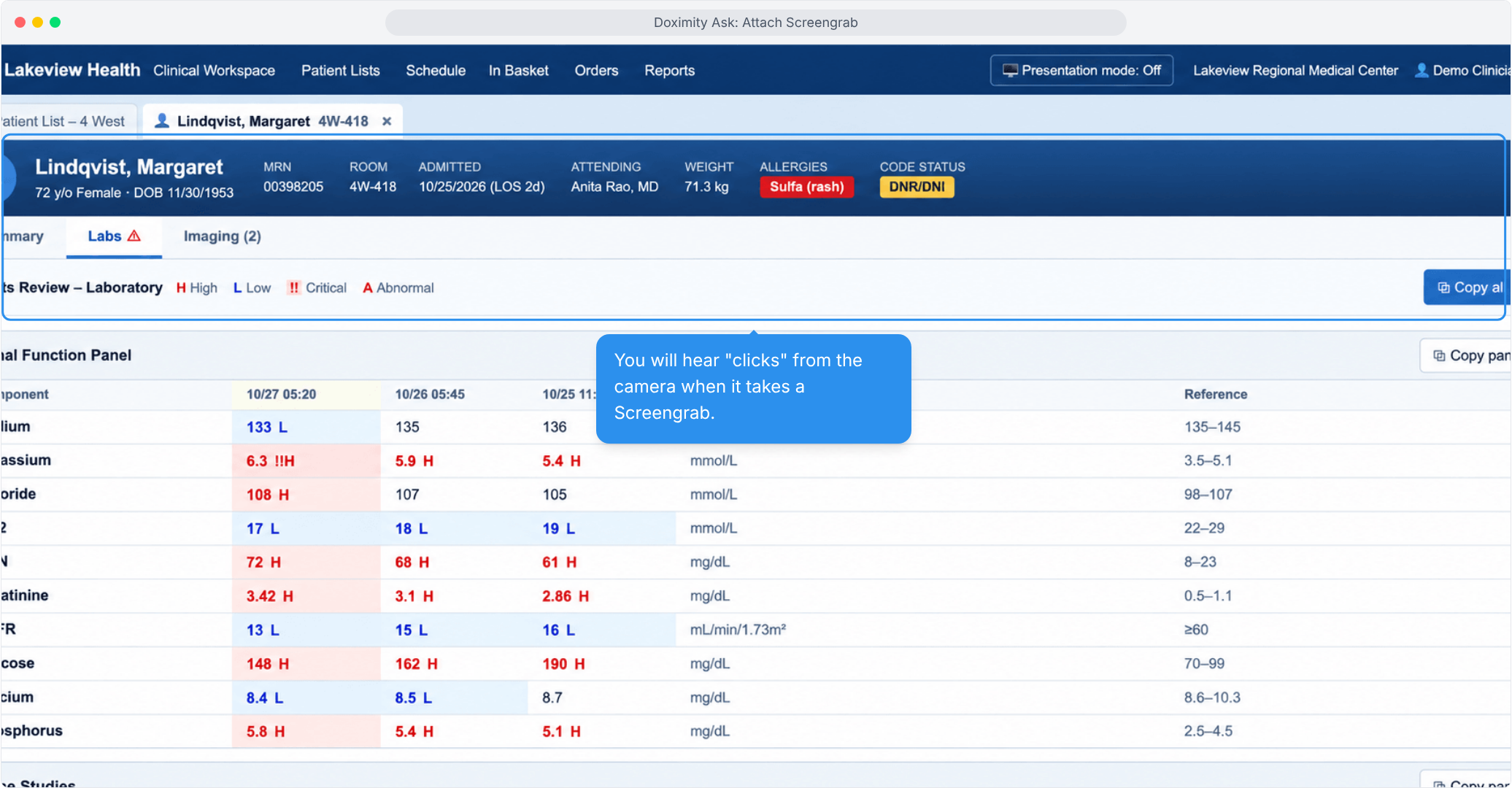
- Listen for the shutter click
A shutter sound means the Screengrab was taken.
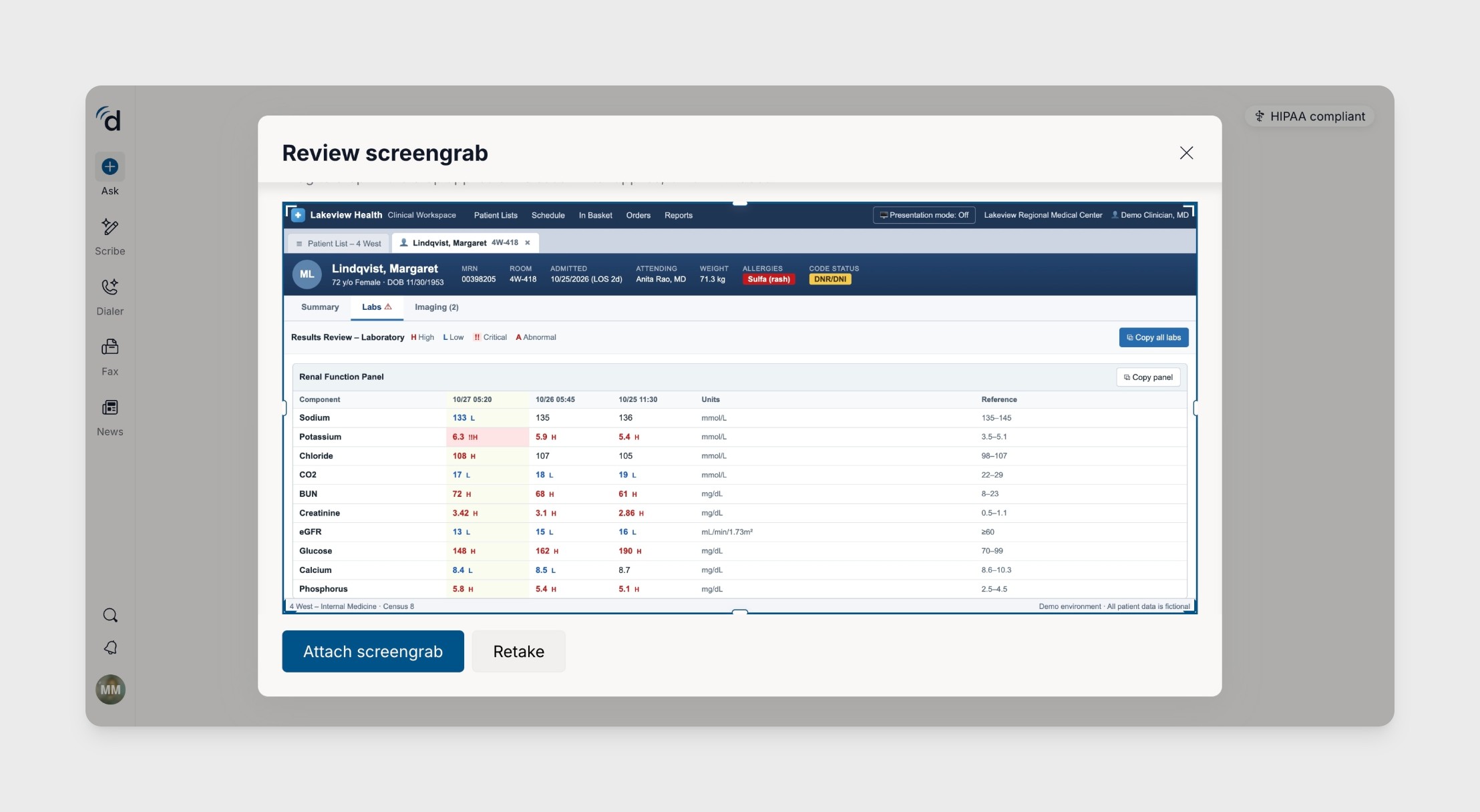
- Review and attach
Go back to Ask, check the Screengrab, and select Attach screengrab.
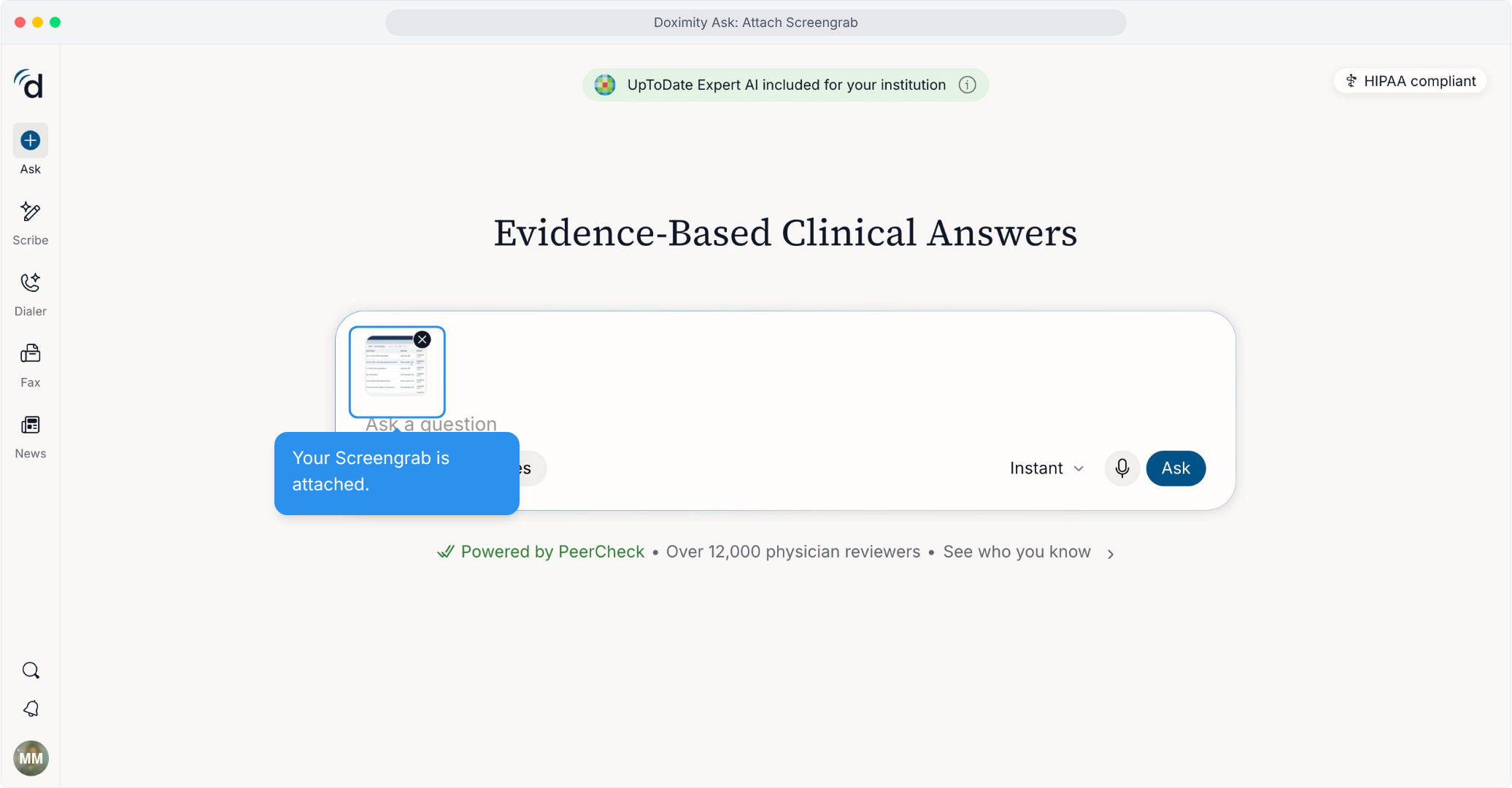
- Screengrab attached
The screengrab appears in the Ask prompt.
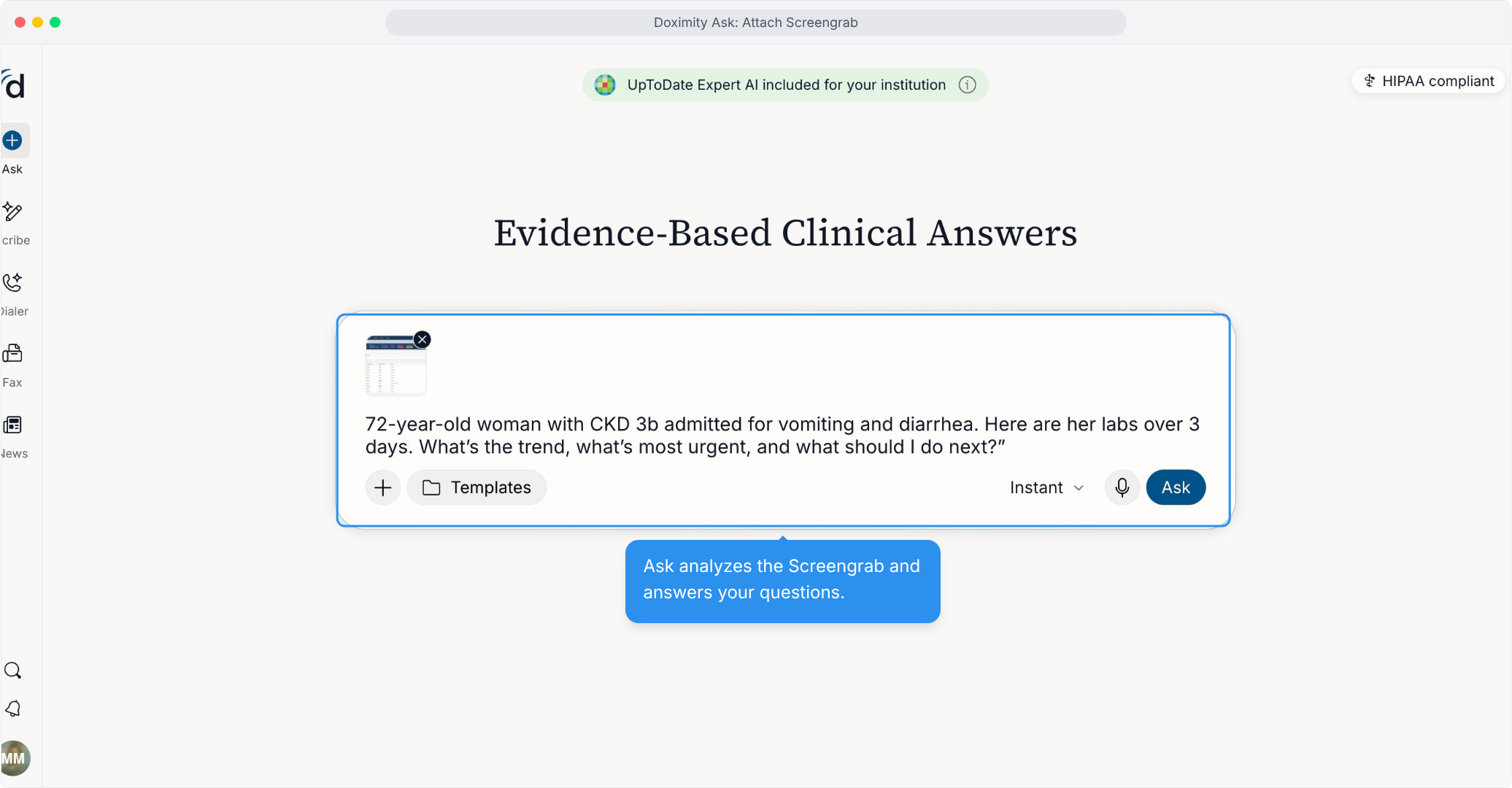
- Write your question
Add clinical context and what you need to know.
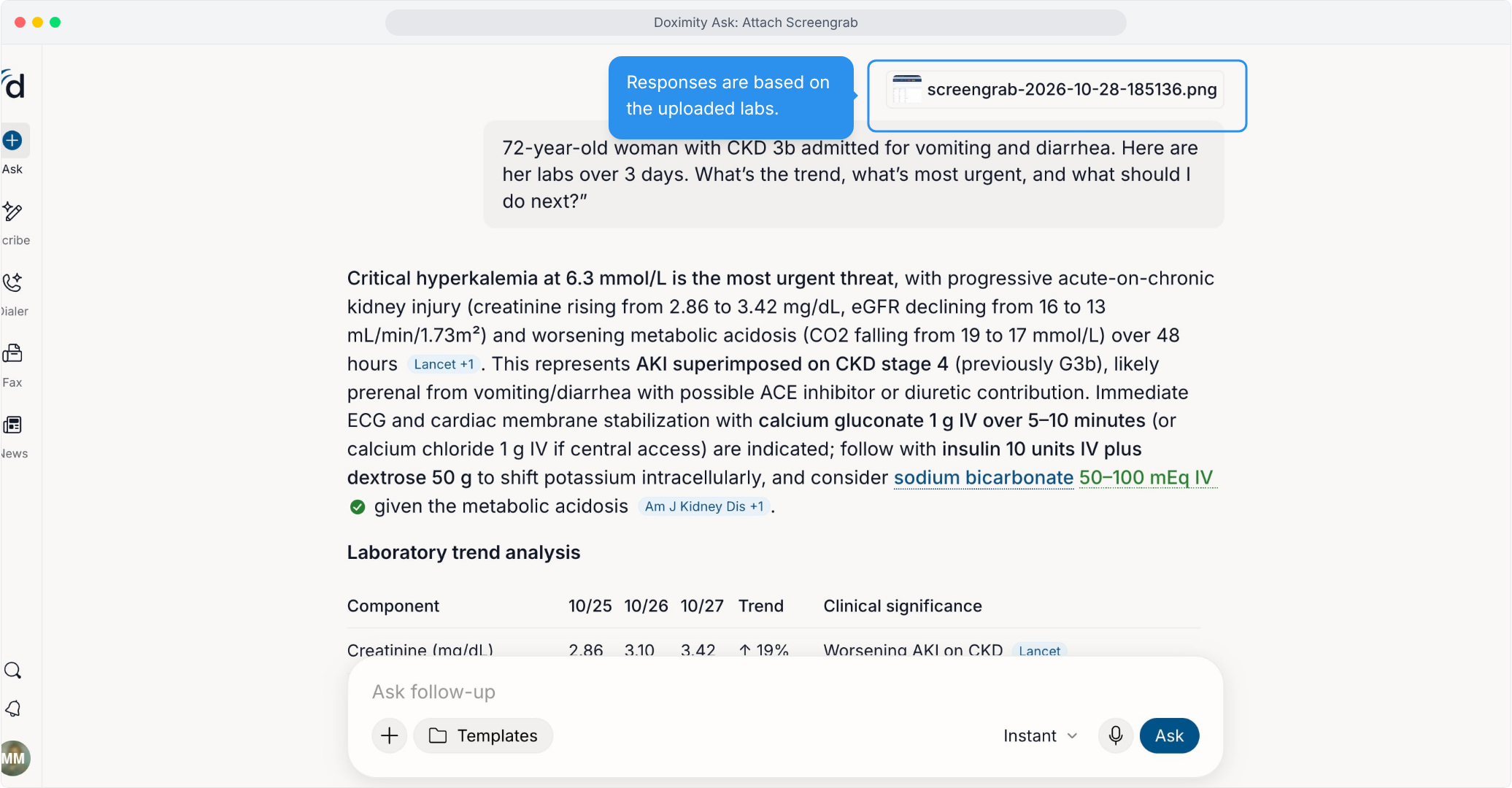
- Answers from your labs
Ask bases its response on the labs in your Screengrab.
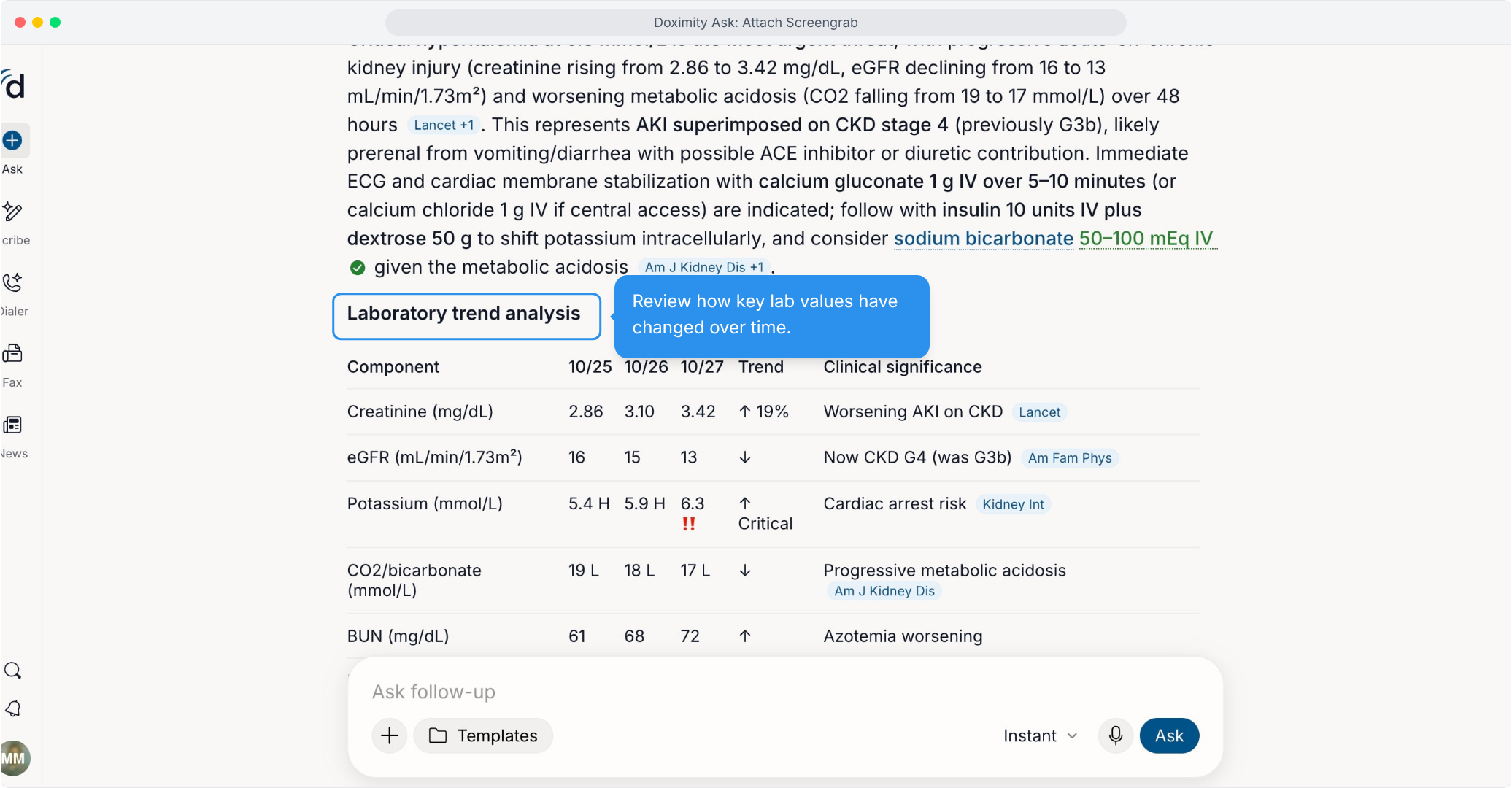
- See lab trends
Review how key values changed over time.
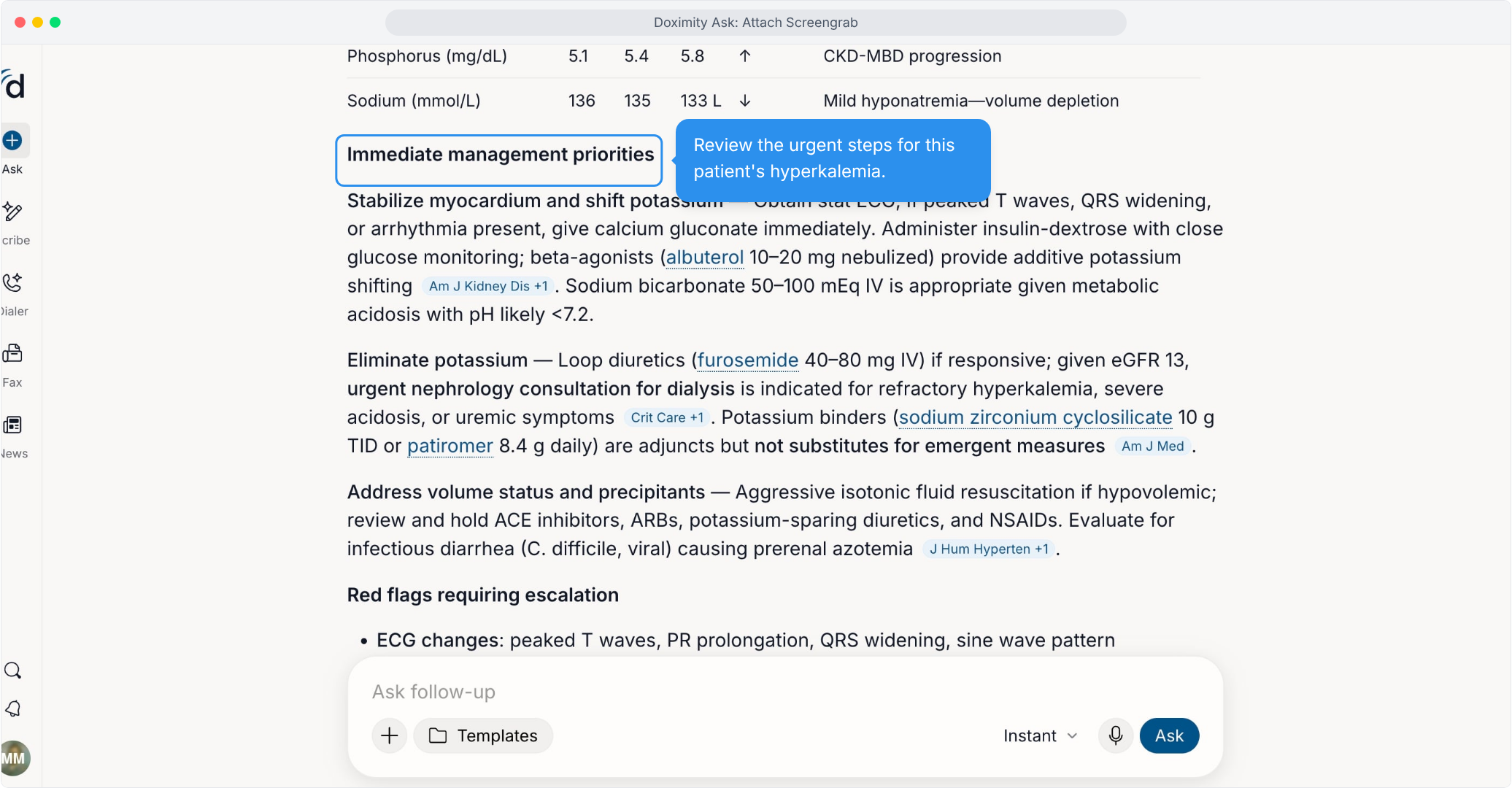
- Prioritize next steps
Ask ranks the most urgent actions for this patient’s hyperkalemia.
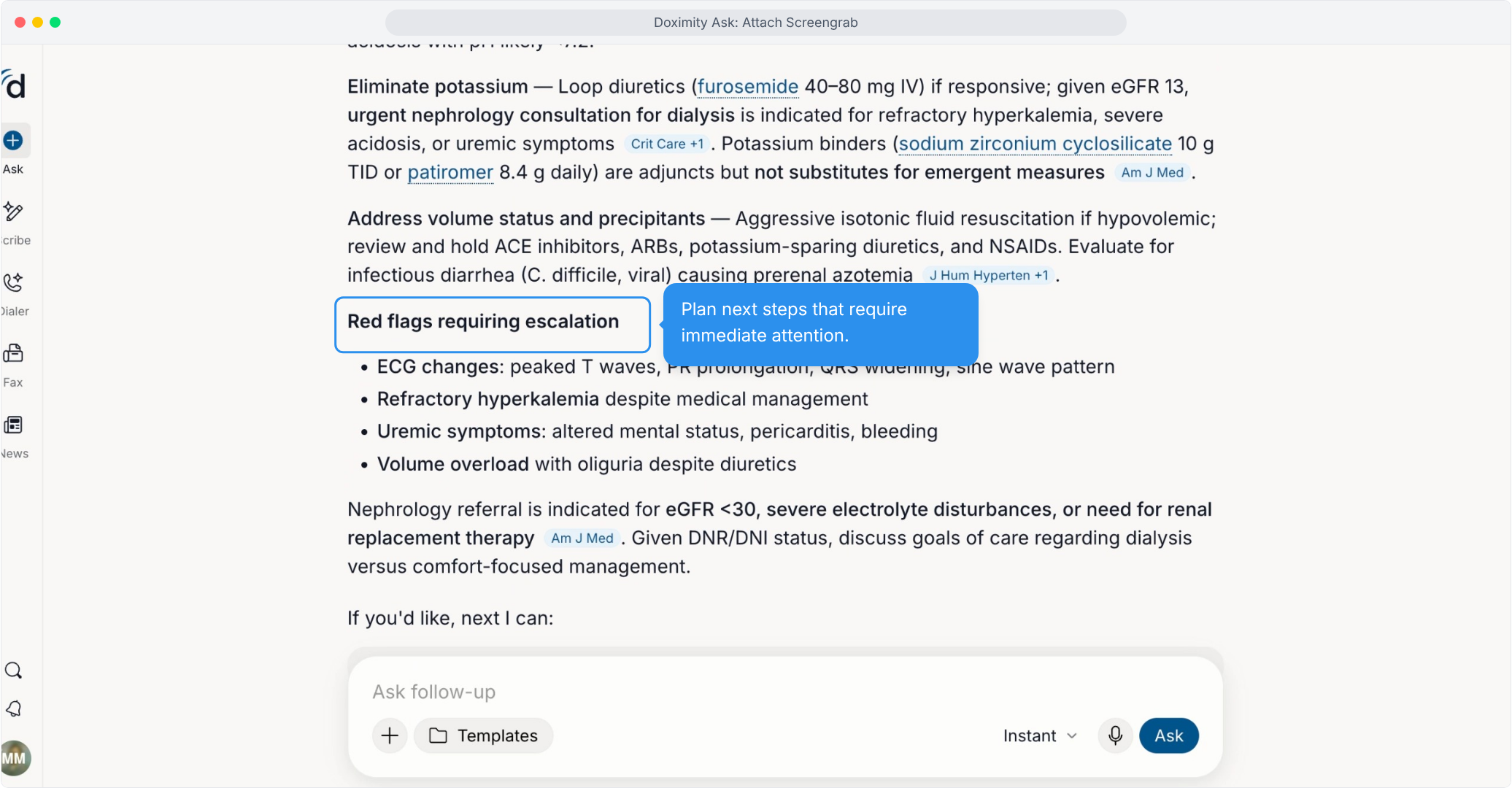
- Spot red flags
See which findings need escalation right away.
Features
Attach: Screengrabs
Screengrabs lets clinicians upload EHR screenshots—such as labs, radiology reports, imaging interpretations, and chart notes—for rapid summarization and extraction of key findings.